APDEX ETL Failover 
We run two clusters in two separate datacenters for APDEX Airflow in WebexKubed -- one is the Primary and the other is the Failover cluster. The process of failing over amounts to turning one on and the other off.
This is largely the same procedure as what we do with our APDEX Airflow in our Rancher clusters currently (which will go away eventually as we move entirely to KubeD.)
Primary: https://apdex.int.wjfkgen-p-1.prod.infra.webex.com/apdex/home
GSB Failover: https://apdex.int.wdfwgen-p-5.prod.infra.webex.com/apdex/home
Failing over from SJC to DFW 
The procedure in failing over is:
-
Go into the 'Failover' (GSB) Airflow. (This is the one we want to turn on)
-
Go to 'ADMIN' => 'APDEX ADMIN' in the top menu navigation.
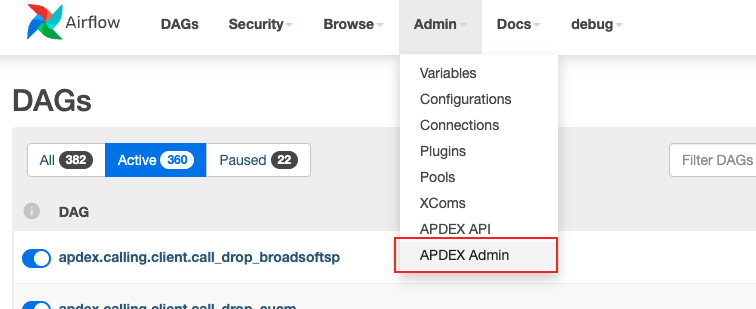
- That will take you to a fairly simple webpage with the following options:
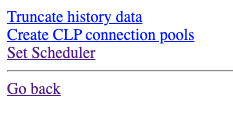
- Click through on 'Truncate history data'. You want to first Truncate the history data -- essentially the status of different DAG runs and all -- in Airflow. This basically accomplishes two things for us:
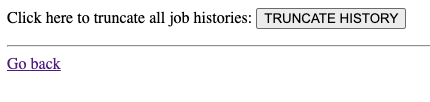
a) It frees up some run in the Airflow database.
b) more importantly, when we are turning on the scheduler again it is easier for us to tell when the cluster is up and running fulling. That is, we'll see successfully completed dag runs fill in.
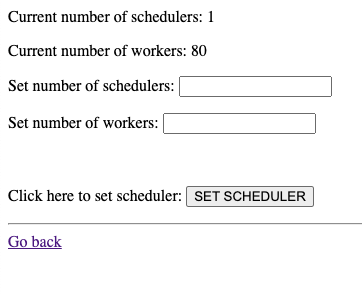
- Go back up to the previous menu and select 'Set Scheduler'.
Here you will set the number of Schedulers to 1 and the number of workers to 80, and then hit the 'SET SCHEDULERS' button.
- Go back to the main page and wait a while as the scheduler starts jobs and they complete successfully.
NOTE: It is normal to have the first one or two DAG runs fail. Just let Airflow get started and it should settle down.
- Go to the Primary Airflow and shut down the Scheduler.
Do the same thing of going to Admin -> APDEX Admin -> Set Scheduler and change the number of workers and schedulers to 0.
You're done!