Guide on integrate Checkstyle with local IDE
Overview 
By reading this document, you will know how to integrate Checkstyle plugin with HEA configuration into your local IDE. Currently only IntelliJ IDEA and Eclipse are covered.
Note: below example screenshots are taken from
IntelliJ IDEA 2022.2 (Ultimate Edition)andEclipse IDE 2022-06 (4.24.0)onMac OS, if you use a different OS or software version, related function and process may be different.
Step by step guide 
1. Install Checkstyle plugin 
IntelliJ IDEA Version 
-
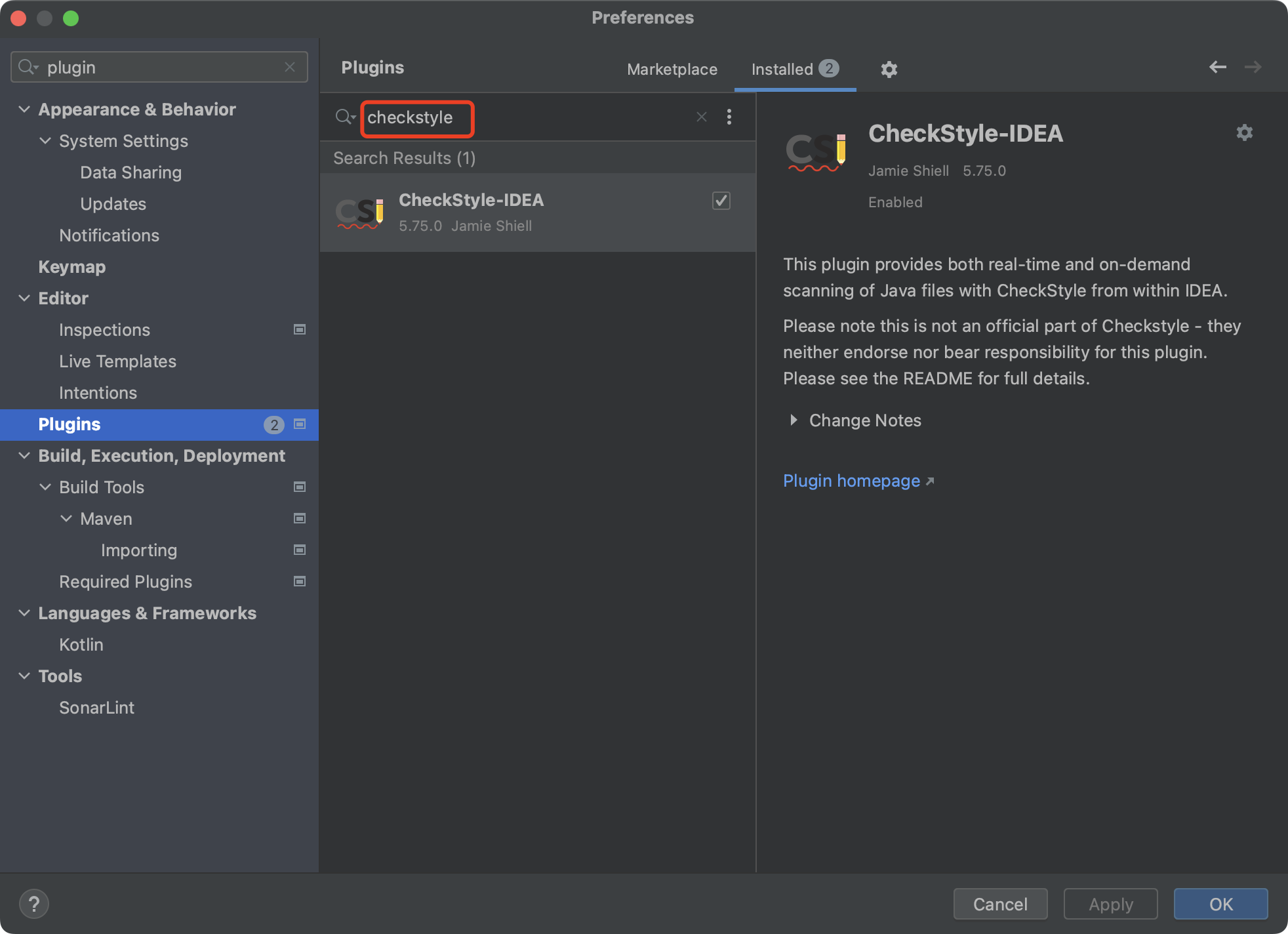
Go to IntelliJ IDEA -> Preferences -> Plugins, search for Checkstyle and install.
-
Restart IDE if needed.
Eclipse Version 
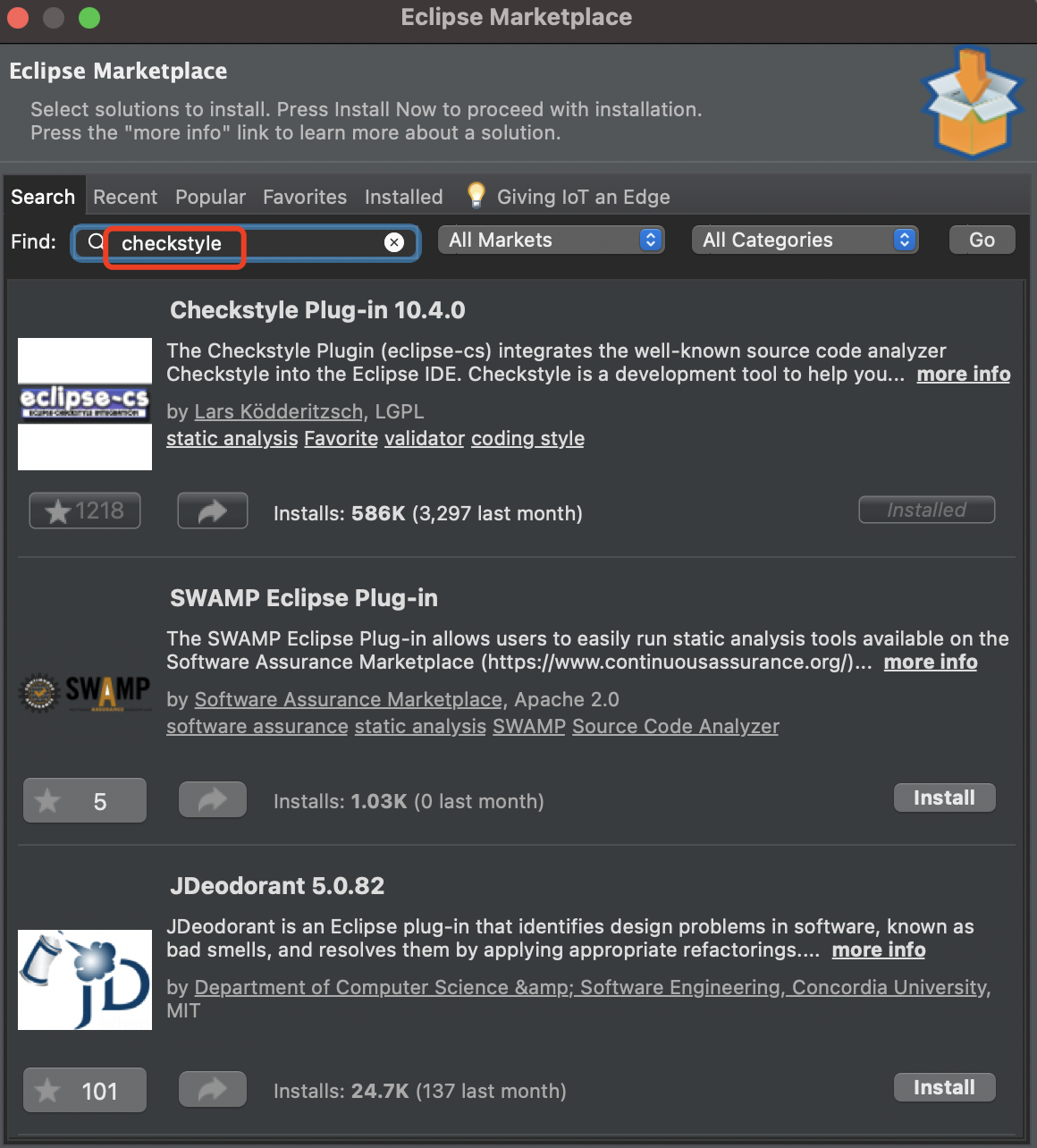
- Go to Help -> Eclipse Marketplace, search for Checkstyle and install.
- Restart IDE if needed.
2. Link HEA Checkstyle configuration 
Tons of error would be thrown if scan our code with the built-in Checkstyle configurations (Google and Sun version), so we need to link our customized HEA configuration into Checkstyle plugin.
Firstly you need to download HEA Checkstyle configuration from GitHub Repo, and put it on your local directory (/Users/zhochi/hea/hea_checks.xml in my case).
IntelliJ IDEA Version 
- Go to IntelliJ IDEA -> Preferences -> Tools -> Checkstyle, on Configuration File section, click
+button.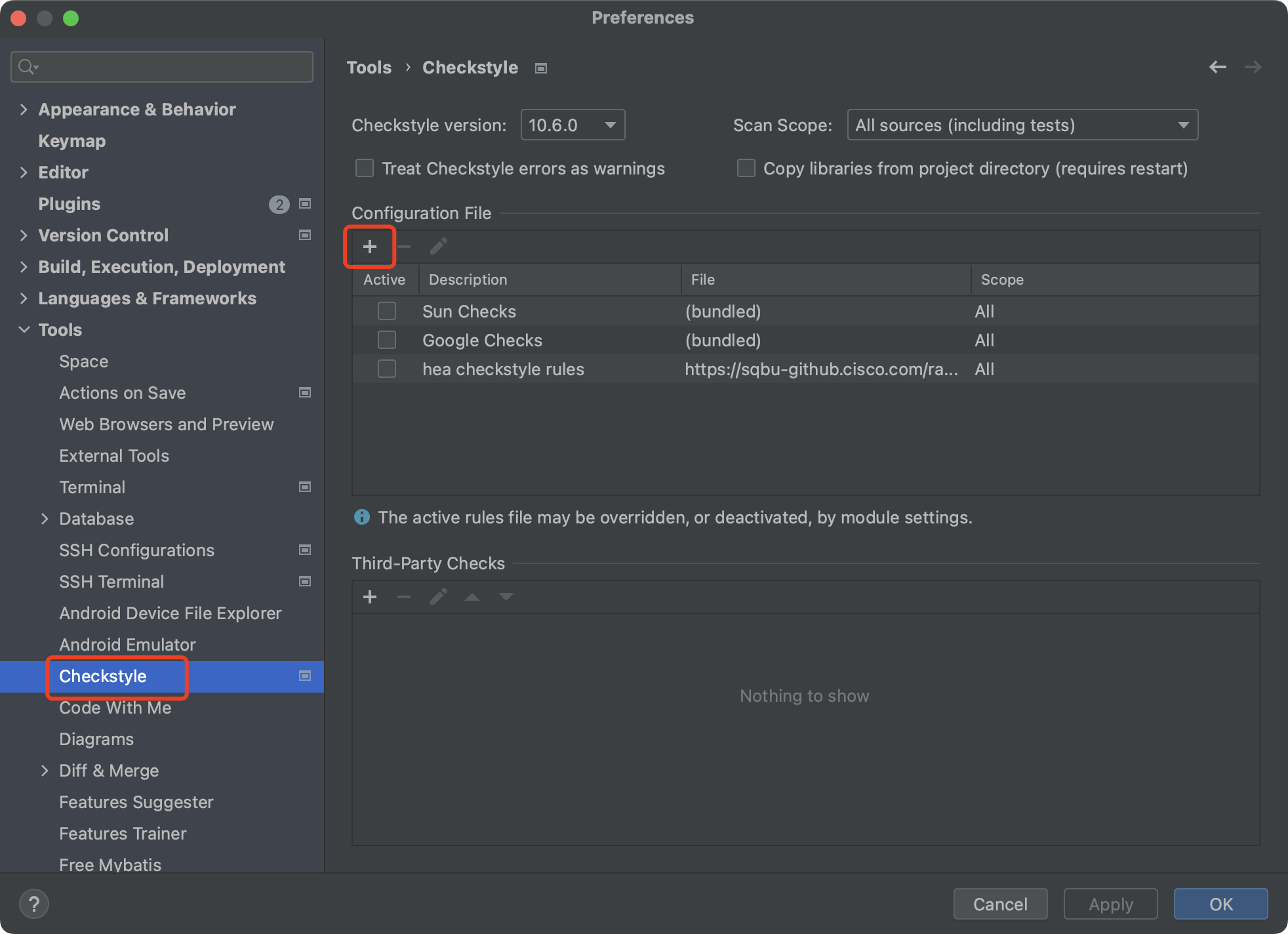
- Input Description, and select Use a local Checkstyle file, then choose previously download HEA Checkstyle configuration.
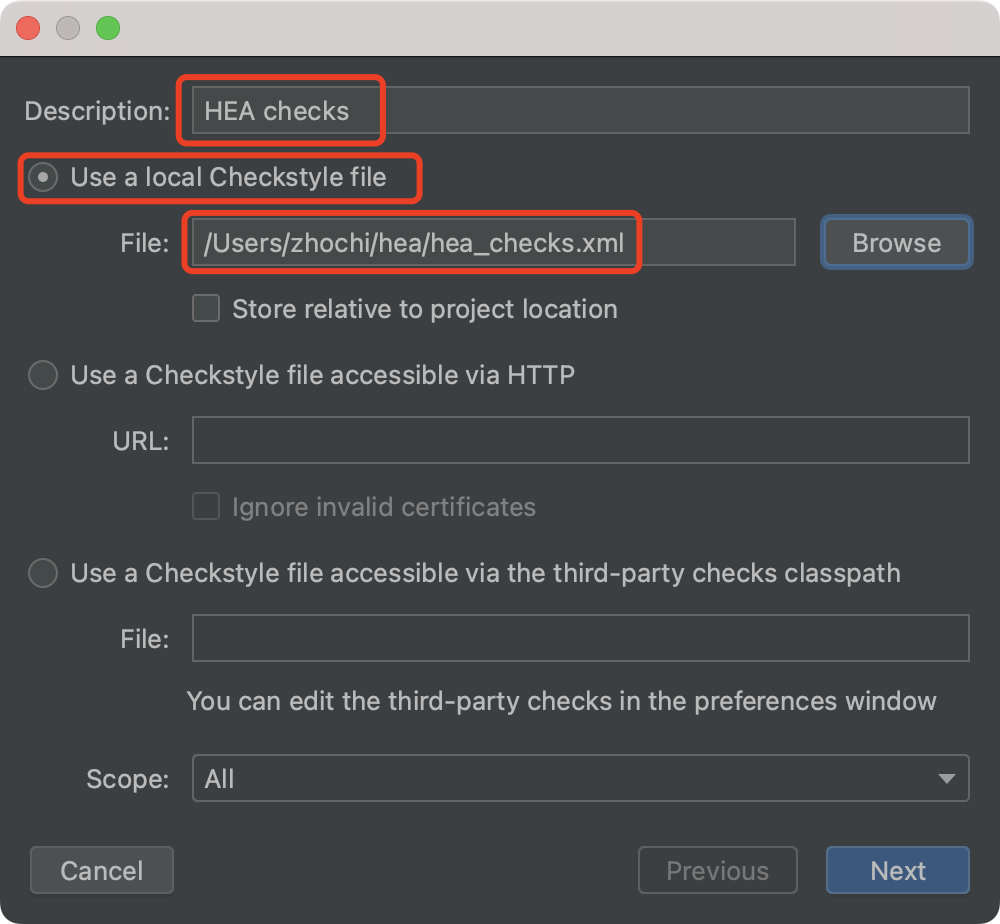
- Click Next -> Finish, you will see the configuration is added.
To avoid such case, HEA team is now working on the remote Checkstyle configuration (http) solution.
Eclipse Version 
- Go to Eclipse -> Preferences -> Checkstyle, on Global Check Configurations section, click
Newbutton.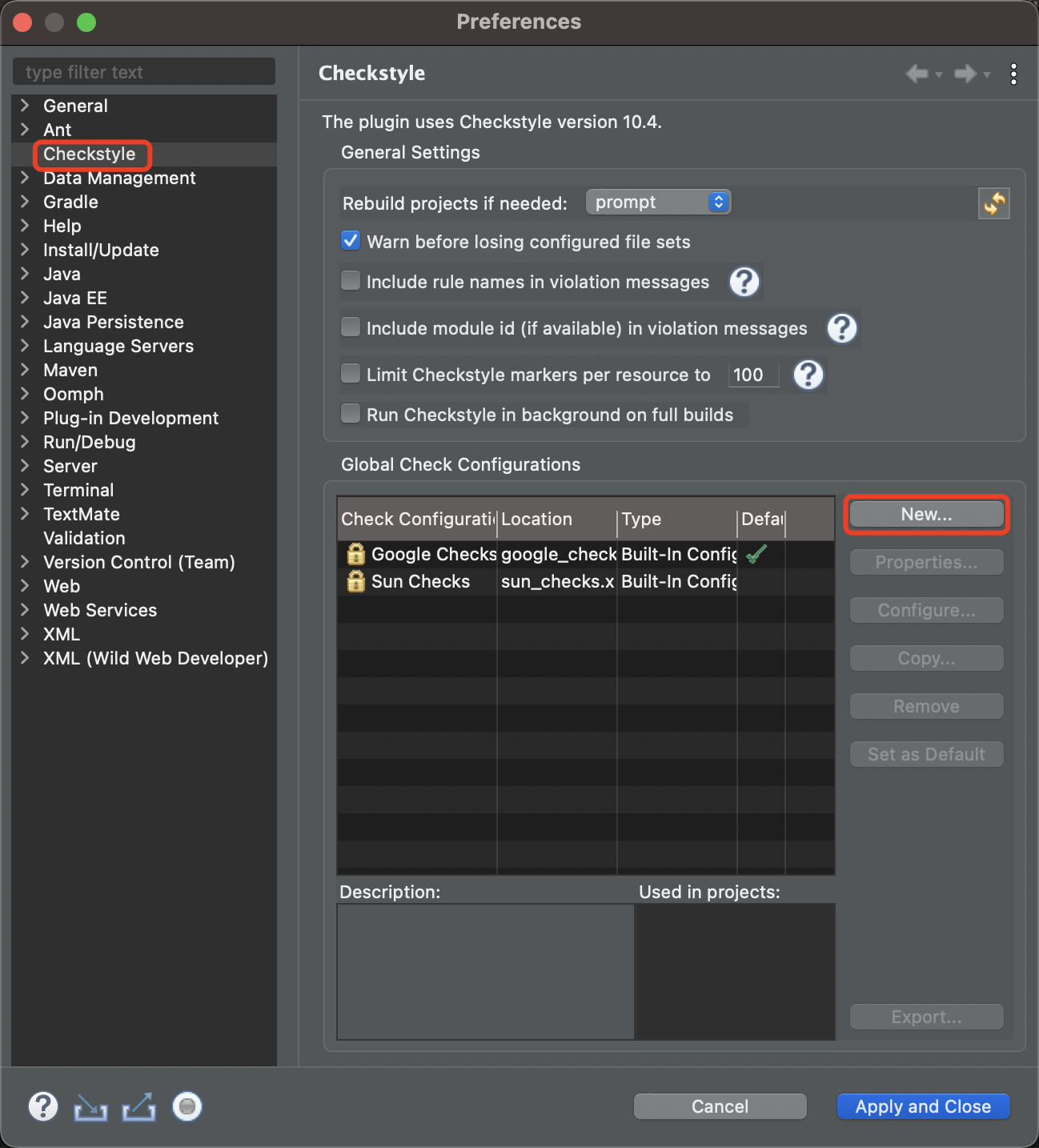
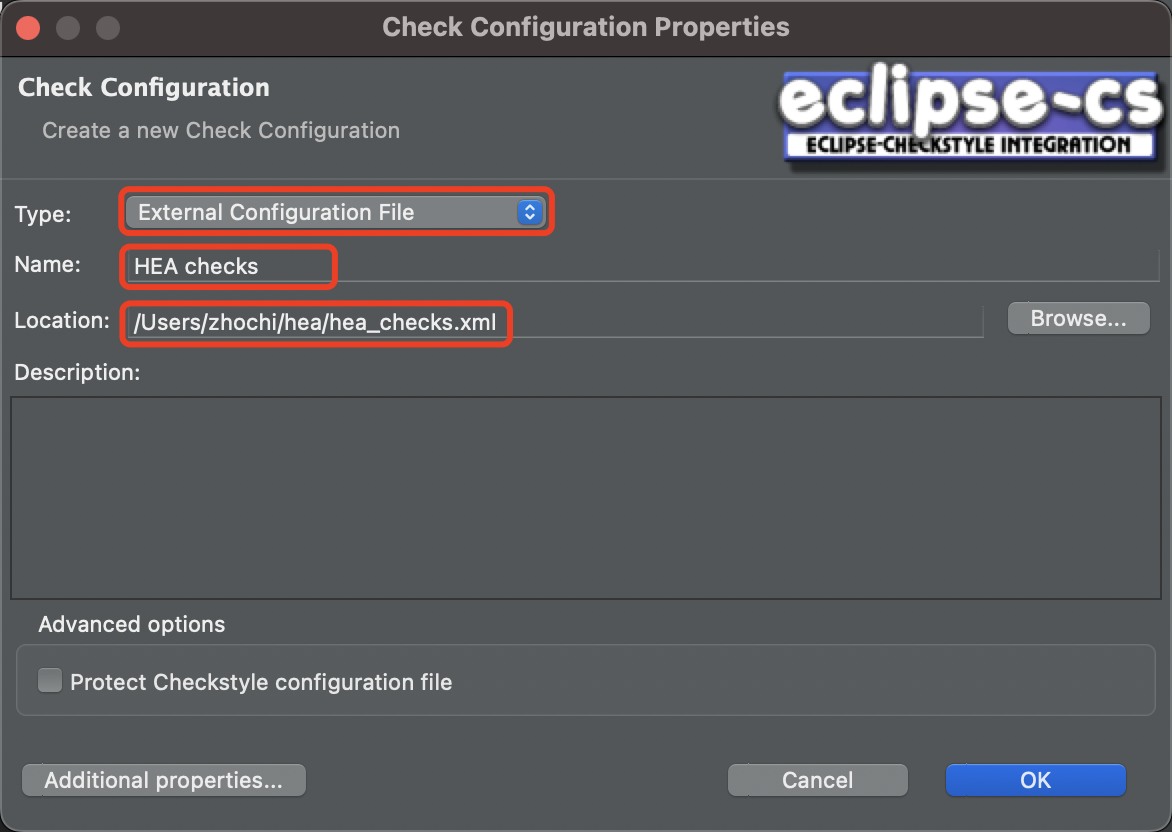
- Select External Configuration File, Input Nme, and choose previously download HEA Checkstyle configuration. Click OK, you will see the configuration is added.
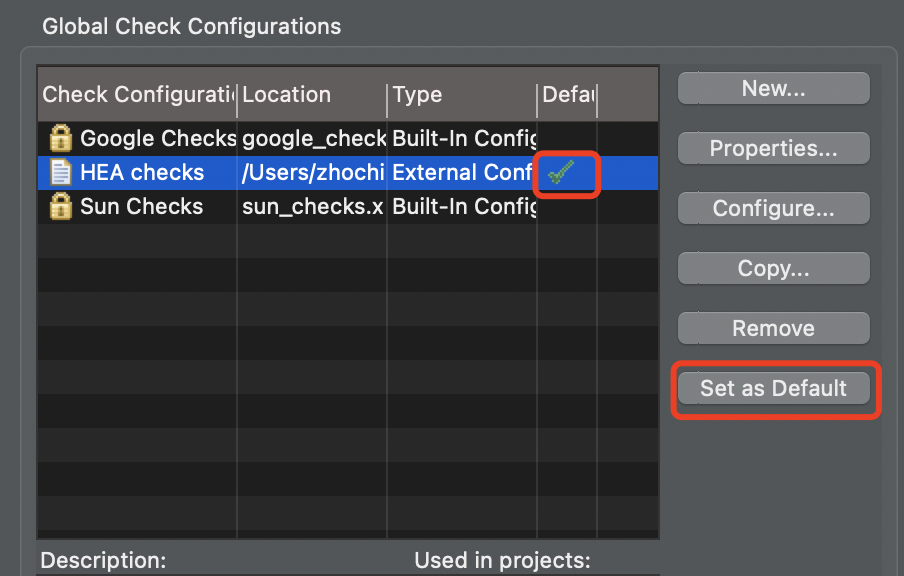
- Set newly added configuration as default
3. Run checks 
IntelliJ IDEA Version 
Go to Checkstyle section in IntelliJ main board, select newly added configuration and run the check, results will be listed. 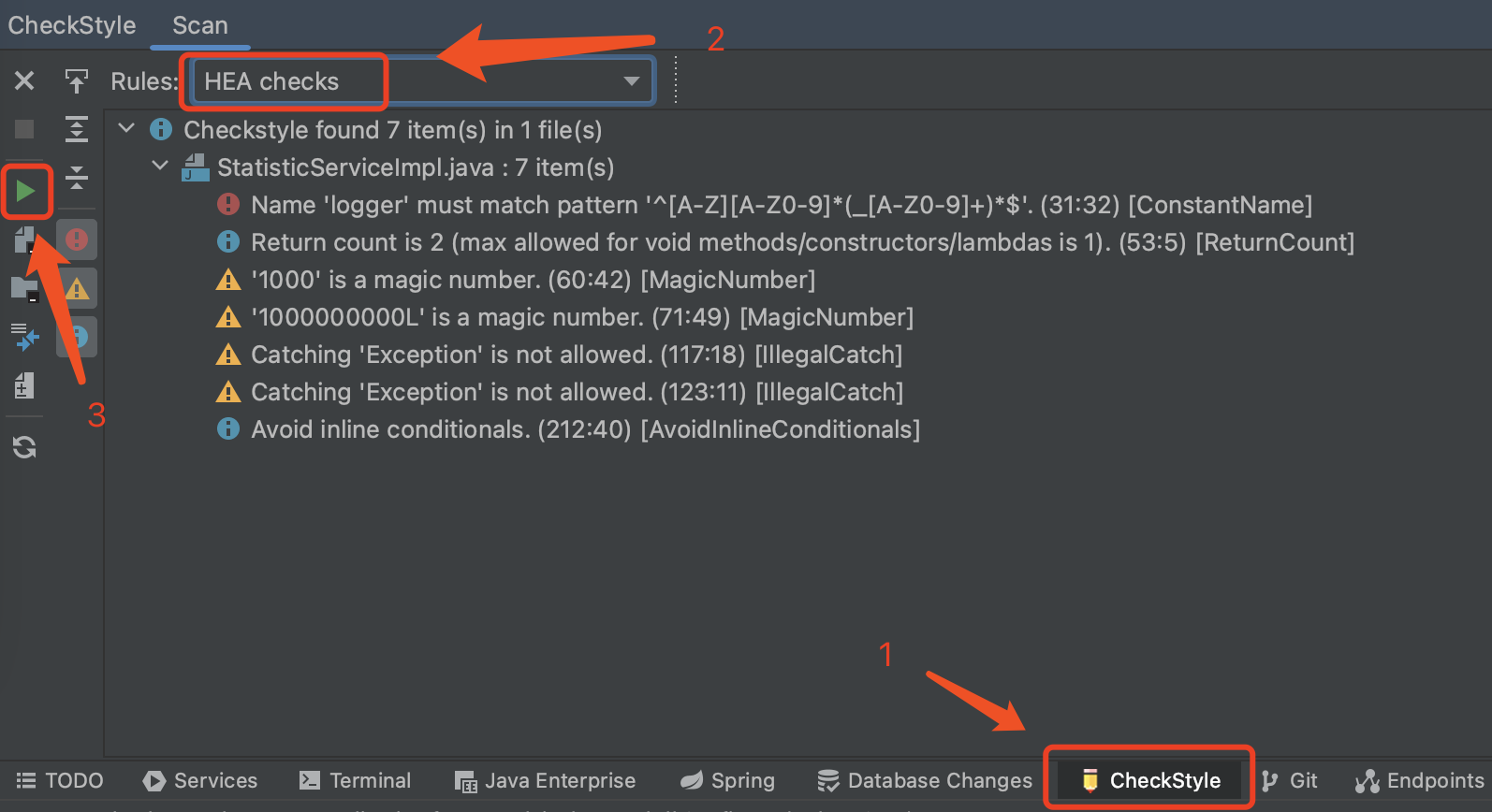
Eclipse Version 
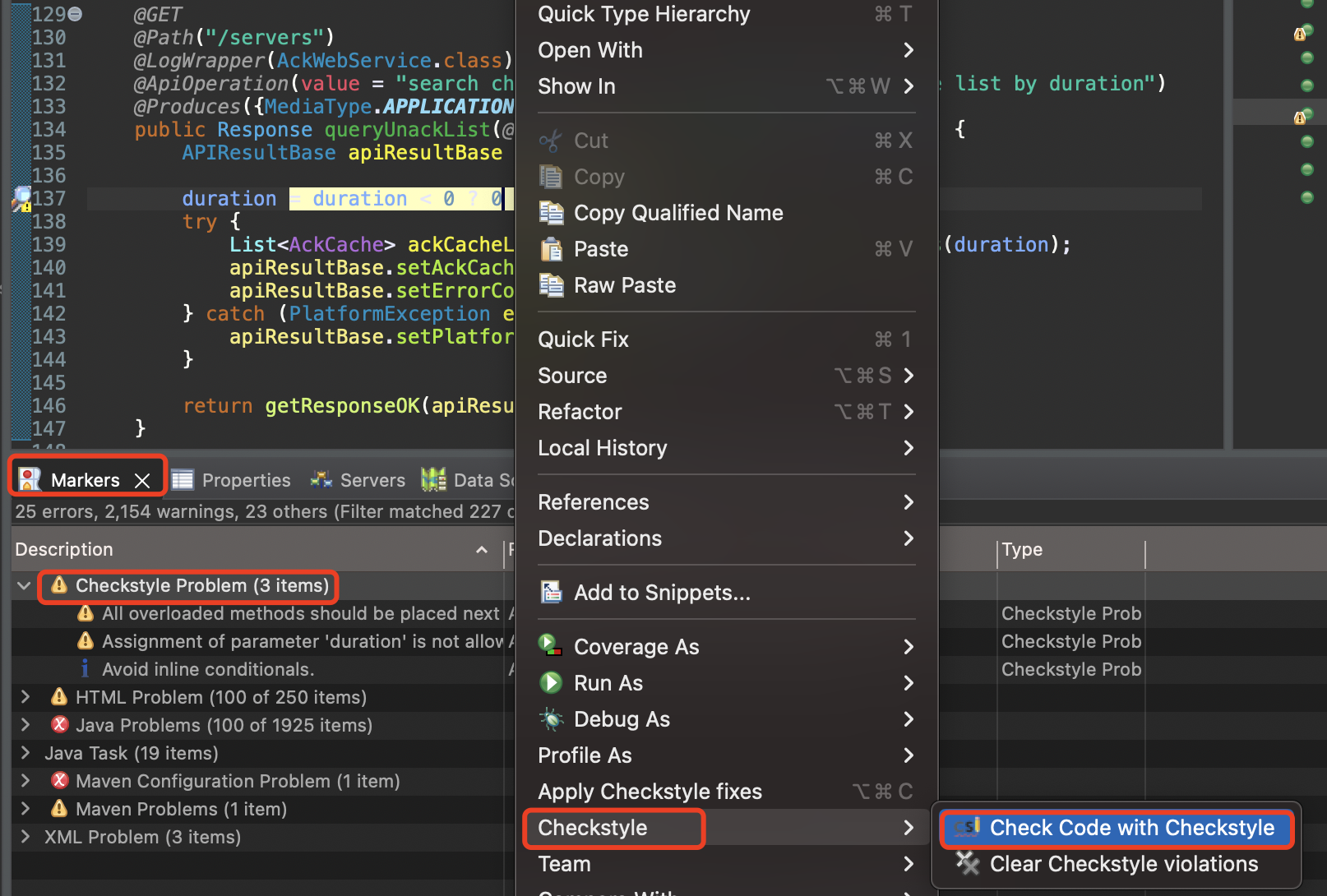
Right click on the file to be checked, select Checkstyle -> Check Code with Checkstyle, after a while, the result will be listed under Markers -> Checkstyle Problem.