Guidelines for Building a Linux Server on VMware or OCP 
Prerequisites:
- System resources have been prepared.
- Vlan is ready for use.
1. Server Type Application 
A server type is a prerequisite for building a server. If a server type has not been assigned, proceed to SNOW to apply for one.
2. Prepare Server Type Template in CDP 
Locating the 'Template Info Configuration' Menu 
- Access the CDP console.
- Navigate to
Build Management. - Select
Configurationfrom the left panel to locate theTemplate Info Configurationmenu.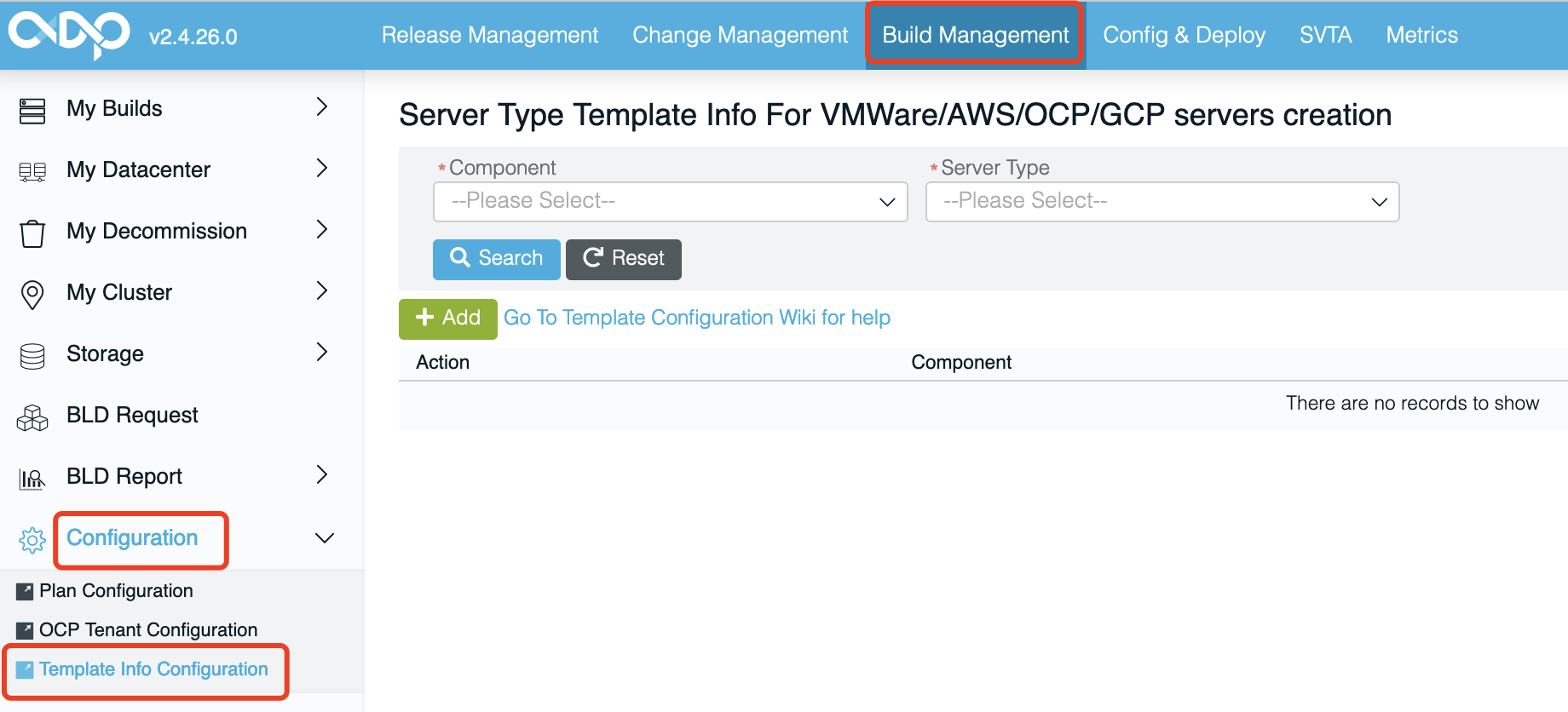
Configuring the Server Type Template 
- Open the
Template Info Configurationmenu. - In the right panel, select the
ComponentandServer Typeof your preference. - Click the "Search" button to apply the selection.
If the server type template exists, it will be displayed as a server type line. 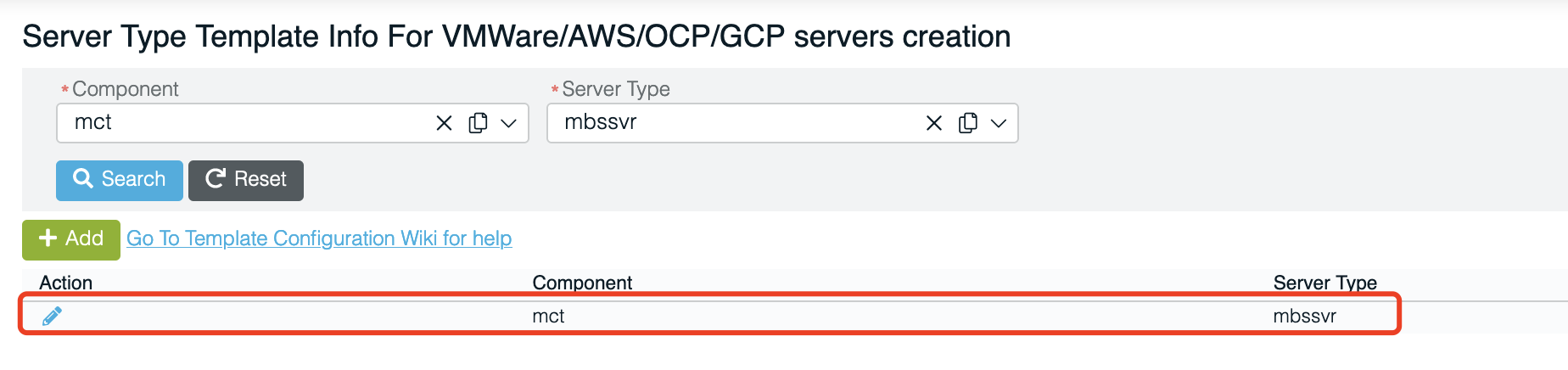
If the server type template does not exist, click the Add button to create a new one according to the guide provided by the CDP team.
3. Prepare the Security Group for OCP Server 
Note: This step is only applicable for OCP servers. If it's a VMware server, skip this step.
In the Server type Template file mentioned in step 2, add ingress and egress policy according to this guide. 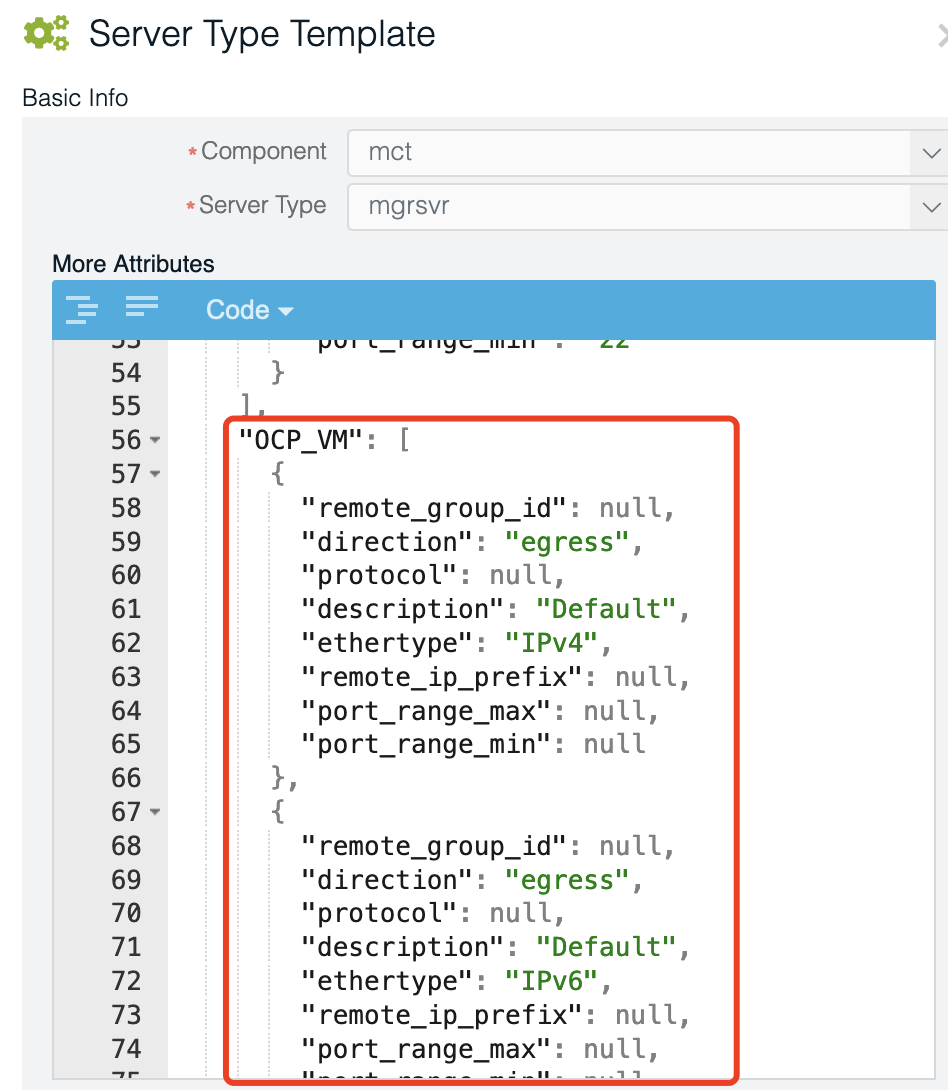
4. Building a Linux Server 
Navigate to the My Build page in CDP, search for component in the left panel, and find the pool you wish to build from.
If the pool doesn't exist, you can add one. 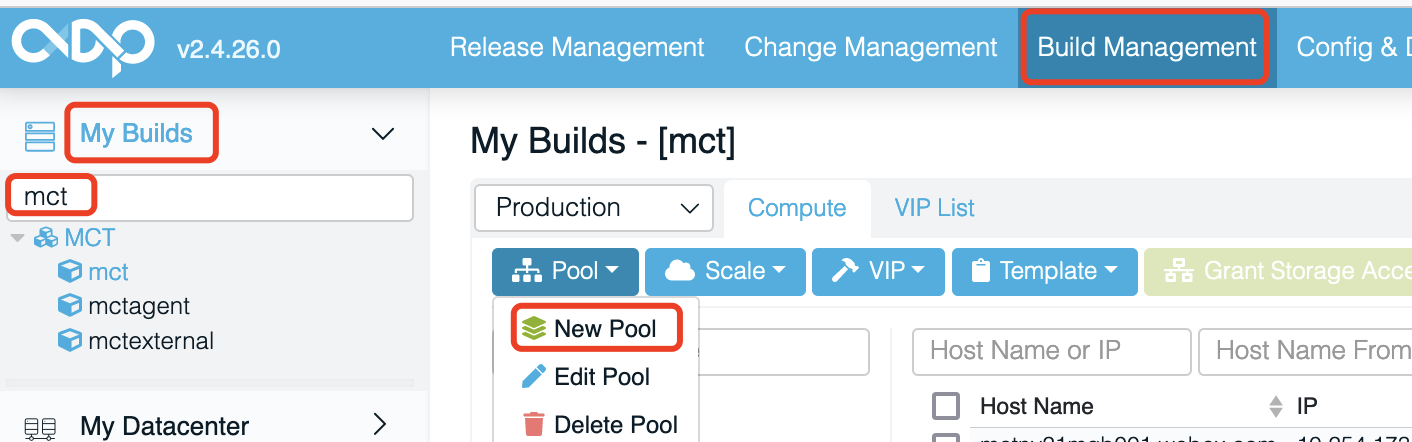
If the pool is there, select one, then click Scale up. 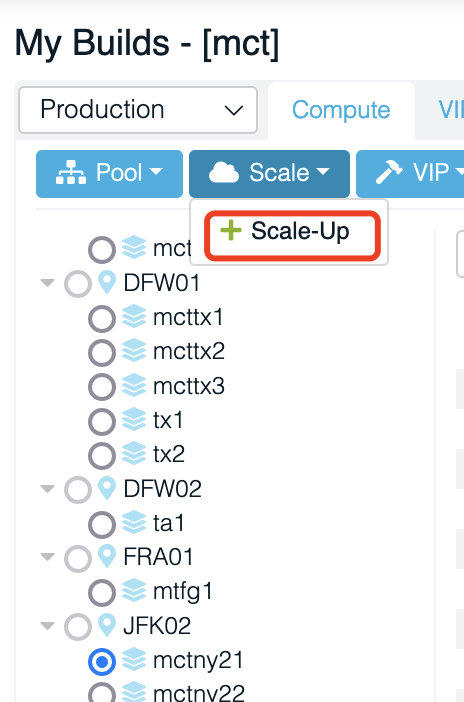
1. Building a VMware Linux Server 
On the Scale up page, select Hardware Type: VMware_VM and Server Type, among other parameters, according to the page prompts, then click Execute to initiate the build process. 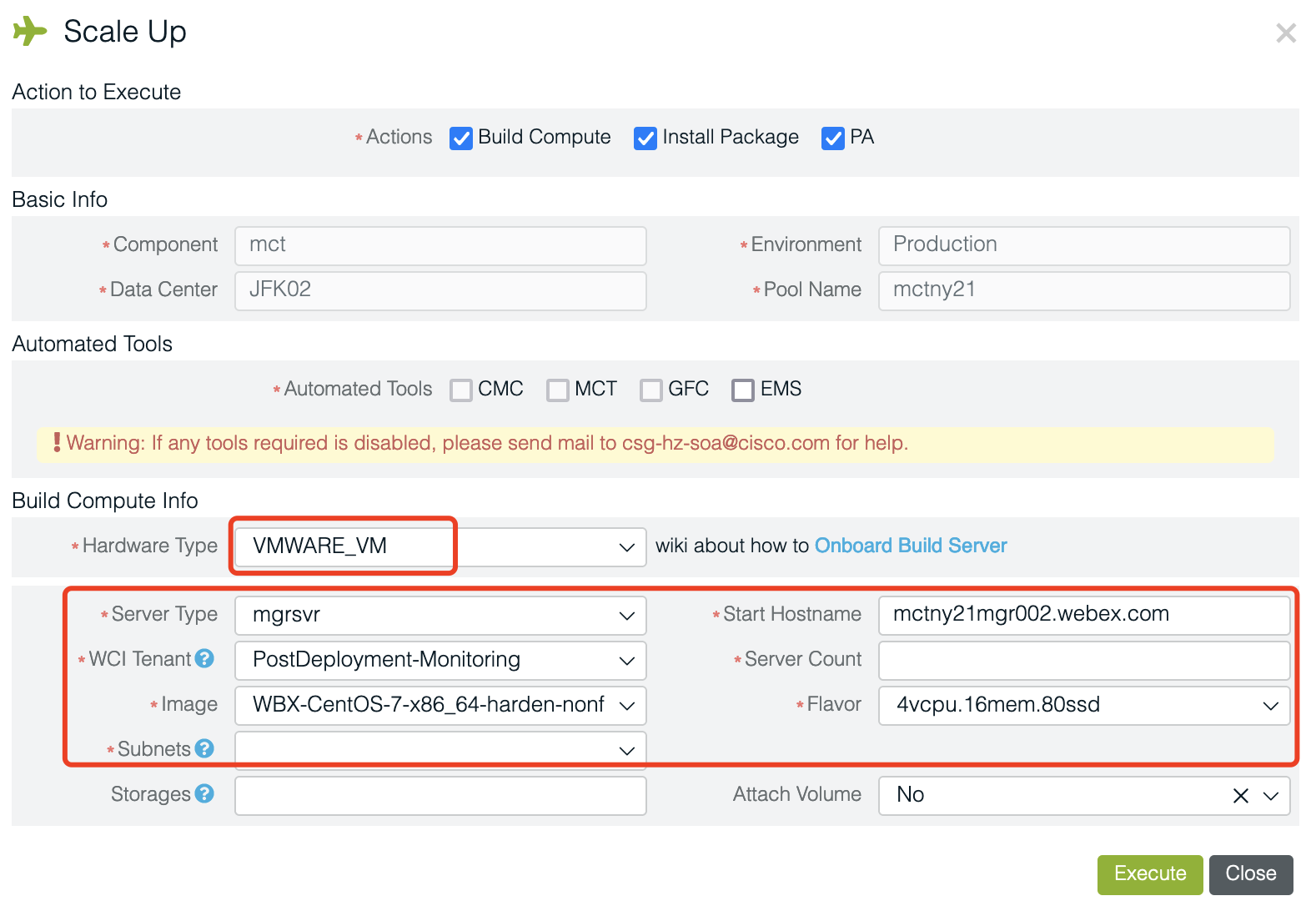
Here is the official guide: https://wiki.cisco.com/display/CSSDP/Build+VMWare+Onboard
2. Building an OCP Linux Server 
On the Scale up page, select Hardware Type: OCP_VM and Server Type, among other parameters, according to the page prompts, then click Execute to initiate the build process.
Notes: In the Flavor Info section, set Ephemeral Disk(G) to 0, check the Boot OCP instance from volume(if Disk is 0) checkbox, then input the Size(G). 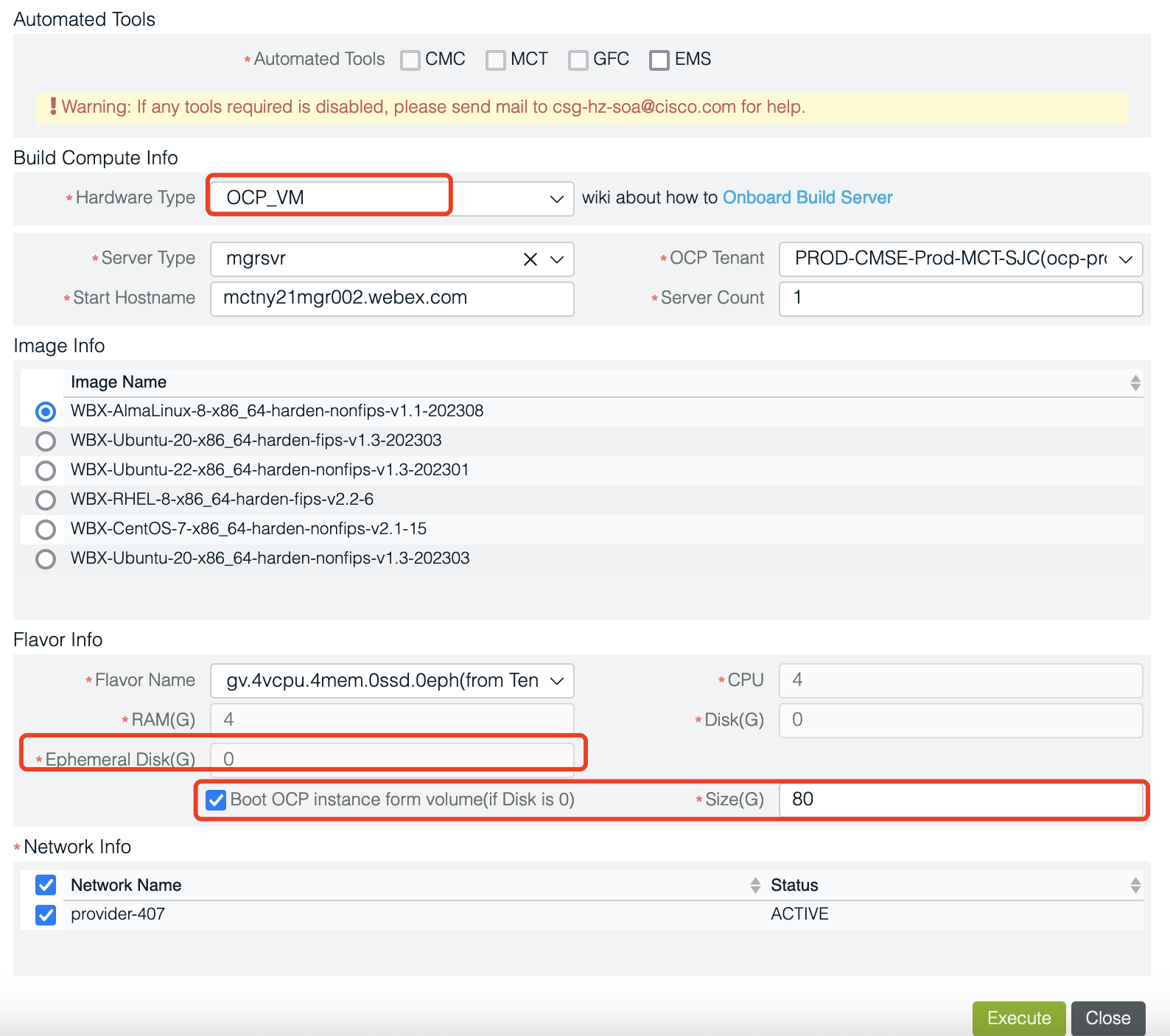
Here is the official guide: https://wiki.cisco.com/display/CSSDP/Build+OCP+onboard#BuildOCPonboard-HowtobuildOCP