Design & Architecture
Overview 
What Is It 
The Docker Based Monitoring solution enables the seamless execution of test cases like TAP (Test Against Production) test cases by running predefined test scenarios encapsulated in Docker images. It allows for comprehensive monitoring and validation of various services. The solution utilizes configurations stored in specified repositories and securely manages secrets through Vault, ensuring a robust and secure testing environment.
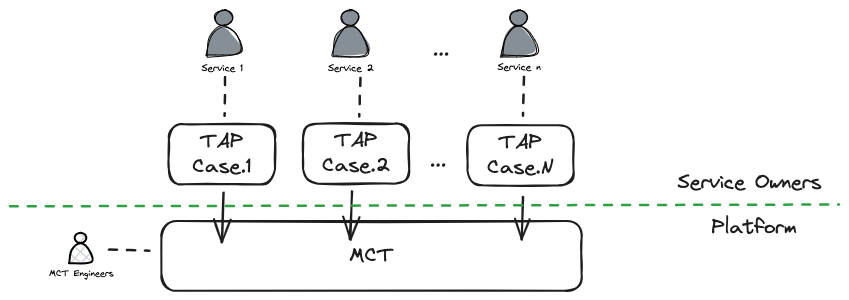
Basically MCT will pull Docker images from image store, and execute the docker cases with pre-defined command lines, parameters and secrets. After the execution, the result will be displayed in MCT portal. MCT engineers are responsible for MCT stability and reliability, and case owners should make sure the quality of TAP cases, and all needed configuration/secrets to make sure the case execution.
Example: Webex Schedule Service 
Let's take Webex Schedule Meeting service as the pilot to introduce the overall progress to adopt MCT TAP Framework:
- Configuration: After building the TAP Docker image, the Webex Schedule Meeting team defines their configuration items in
configmap.xmlunder the MCT TAP Config Repo. Secrets are defined in Vault under themonitoring-alerting-servicenamespace, and thesecrets.yaml.tplfile in the same folder is updated accordingly. All these configuration details are then filled in thetap-settings.yamlfile. - Registration: Upon submitting a Pull Request with these configurations, the completion of the PR triggers Argo to deploy the configmap and secrets in the MCT Kubernetes cluster. It also calls the MCT API to register the MCT check with predefined parameters, such as the test interval.
- Execution: MCT then executes the test cases within Docker containers,to initiate the end to end TAP case to simulate real-world scenarios like scheduling meetings. Engineers of Schedule Meeting service can go and visit MCT portal to define Alert Rule in MCT, to make sure the notificaiton receive by different options.
- Output: With any continous failure, MCT will trigger notification based on pre-defined
Alert Rule, and engineers of the Schedule Meeting service can then check out the detailed failure information in MCT Detailed Status section, and analyze log information in Opensearch with specified job ID.
Benefit 
The integration of the TAP Framework into MCT brings several significant benefits:
- Comprehensive Monitoring: By executing test cases, MCT can monitor the end-to-end performance and availability of services, ensuring that all components function correctly under various conditions.
- Automation and Consistency: The use of Docker images for test cases ensures a consistent and reproducible testing environment, minimizing discrepancies and human errors.
- Secure Management: The framework securely manages secrets required for test execution through Vault, protecting sensitive information and maintaining data integrity.
- Enhanced Visibility: Detailed logs, metrics, and visualized status reports are generated and displayed in the MCT portal, providing actionable insights for service owners, engineers, and leadership.
- Scalability: The TAP Framework allows for the easy scaling of test cases across different services and environments, accommodating the growing needs of the organization.
High Level Workflow 
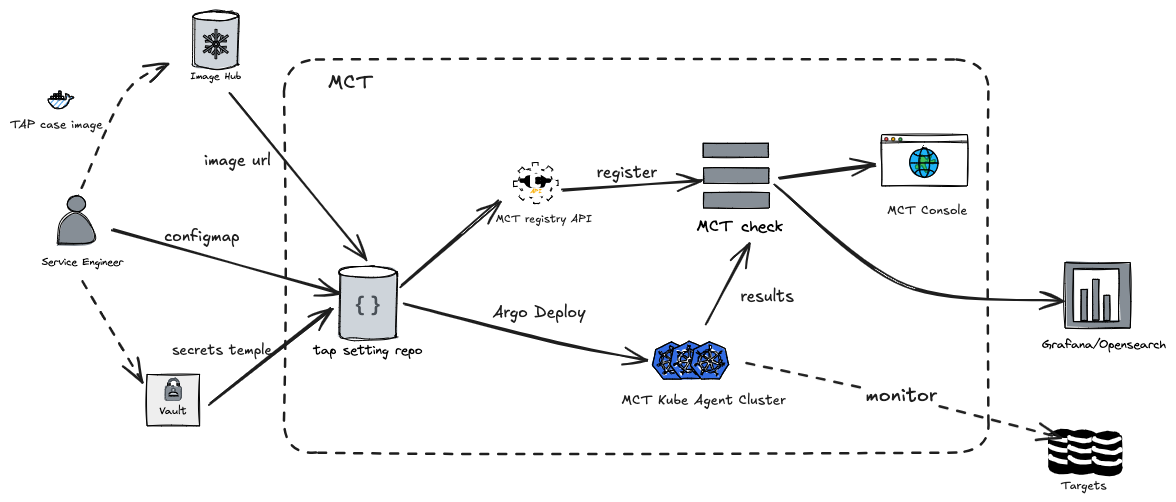
Detailed Workflow Diagram 
This is completely workflow diagram of registering TAP settings to and executing TAP tests as Jobs in MCT platform:
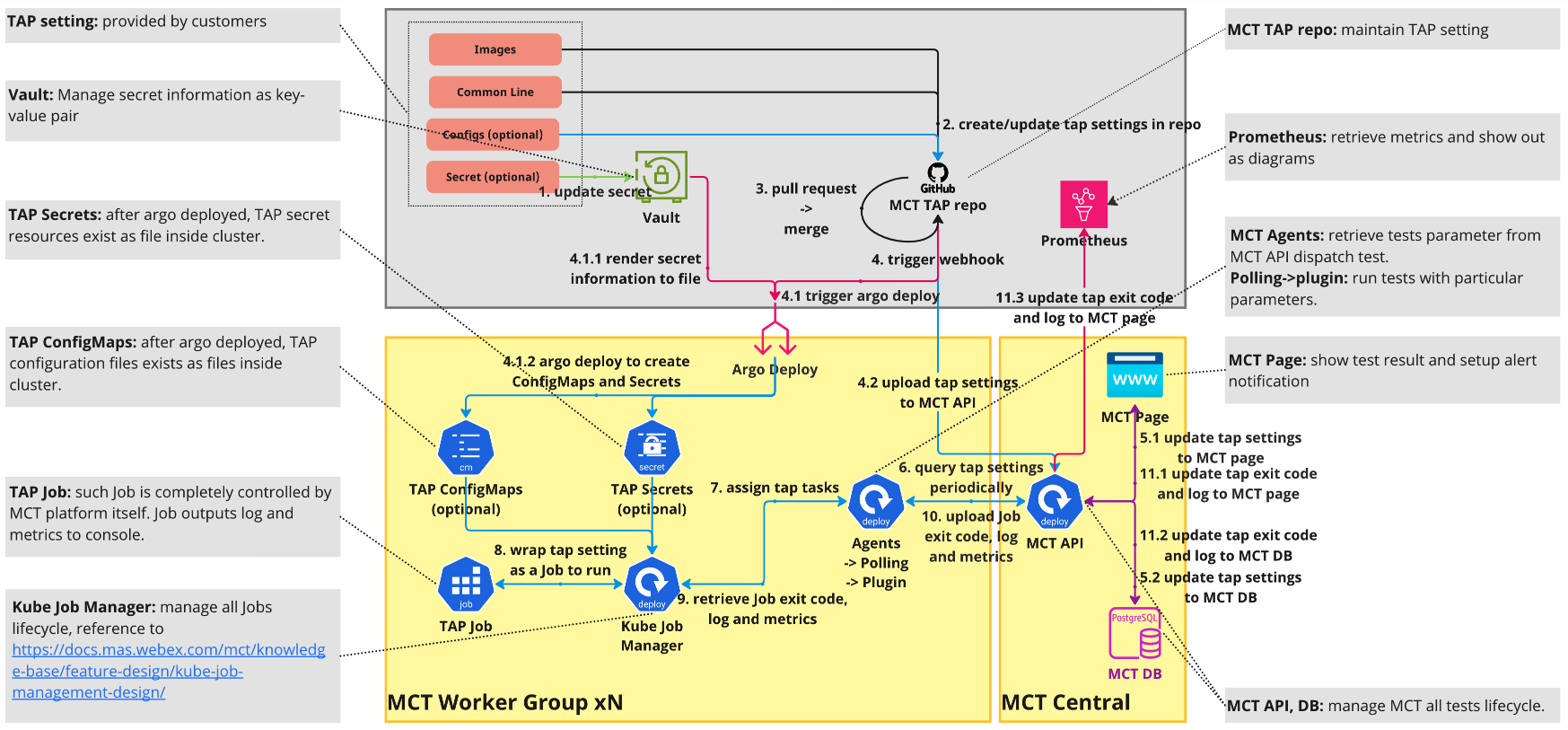
Workflow 
-
Set Secrets and Configuration: - Service engineers set secrets in Vault and configure items in the TAP setting repository.
-
Submit Pull Request (PR): - Service engineers submit a PR with the new configurations.
-
Trigger Webhook: - The PR submission triggers a webhook to deploy configuration items and secrets as Docker ConfigMaps and Secrets in the MCT Kubernetes cluster.
-
Register Monitoring Content: - The PR also triggers the MCT API to register an MCT check.
-
Periodic Query by MCT: - After all registration steps are completed, MCT periodically queries the TAP settings to trigger monitoring tasks.
-
Assign Tasks to Kube Job Manager: - Once the monitoring period is reached, MCT assigns the tasks to the Kube Job Manager.
-
Generate and Execute Job: - The Kube Job Manager generates a job to execute the docker case.
-
Get Docker Setting Configuration to Run as a Job: - The docker case execution configuration is retrieved to initiate and execute the job.
-
Retrieve Job Execution result: - MCT Agents will retrive the execution result base on the exit code of the job
-
Send result to MCT API: - MCT Agents sends back the monitoring result to MCT API
-
Persistent the Result: - MCT API persistents the monitoring result in MCT database, and to LMA
Here is original design architecture: MCT Integration with TAP.
TAP Settings 
This section contains components detail of Docker settings, rules of locating components under MCT Docker repo and output style required for output, including log and metrics.
Configuration Structure (TAP Owner provide) 
Each Docker case setting includes the following components:
- Image Name: Image name within the registry, e.g.,
registry.cisco.com/tap-example:1, required. - Command Line: Instructions to poll up the test case, required.
- Environment Variables: Environment variables mounted into containers, optional.
- Configuration File: File containing none-secret settings, e.g., target sitename and data center name. If customers involve such item, they have to set up configuration file mount location. optional.
- Secret Information: Secret including TAP secret information managed by Vault based on Application Secret Policy, e.g., username and password under a site. Currently, MCT employs Deploy Time Policy as secret policy rather than Run Time Policy. If customers involve such item, they have to set up secret file mount location. optional.
- Result Filename: Name of the file storing the tap output. Once the field is provided in registering TAP to MCT, the content of file will shown as output instead of container console log. optional.
- TAP Timeout: Timeout of a test case. Default is 2 minutes. optional.
Folder Structure Rule in MCT Repository 
This rule defines how to organize folder and file content customers must comply in MCT tap repository:
application group folder
|-- configuration file in app group level
|-- secret template file in app group level
|-- tap-settings.yaml in app group level
|-- environment folder
    |-- configuration file in environment level
    |-- secret template file in environment level
    |-- tap-settings.yaml in environment level
    |-- target cluster folder
        |-- [tap case name]
            |-- configuration file in cluster level
            |-- secret template file in cluster level
            |-- tap-settings.yaml in environment level
        |-- [tap case name]
            |-- configuration file in cluster level
            |-- secret template file in cluster level
            |-- tap-settings.yaml in environment level
        |-- ...
- Application Group Folder: Different components in Cisco represents corresponding application, reference to first folder level in Webex-Kube repo: WebexPlatform/wbx3-application-groups. required.
- Environment Folder: Specific environment customers expect to deploy docker based tests, reference to the second folder level and the inner layers in Webex-Kube repo: WebexPlatform/infra-app-configs. required.
- Cluster Folder: Specific target cluster customers expect to test. required.
- TAP Case Folders: Each tap case folder maintains related tap settings. This folder structure policy is meeting requirements of multi images with corresponding config map and secret so that there is only one config map, secret and tap setting file under each tap case folder. And each tap case folder name will be as MCT check name, e.g. cloud-connector-test. Here is example TAP case folder. required.
- Files under Each Folder Level: - TAP Settings: filename is constant with tap-settings.yaml, containing the container-based test items shown as the followings: - imageName:
string, image name within the registry. - commandLine:array, command line to run TAP test. - environmentVariables:array, environment variables mounted to container. - configMountPath:string, ConfigMap file mount path inside cluster. - secretMountpath:string, Secrets file mount path inside cluster. - resultFilename:string, file content to replace container log as output. - timeout:string, timeout for TAP test.Here is an example of [TAP setting file](https://sqbu-github.cisco.com/Monitoring/mct-tap-settings/blob/main/mas-monitering-alerting/tap-settings.yaml). ``` imageName: registry.cisco.com/tap-example:1 commandLine: - "sh" - "-c" - "ls -al /etc/tap-config" environmentVariables: - "isE2eOnly=true" - "agent=MCT" configMountPath: /etc/tap-config secretMountPath: /etc/tap-secret resultFilename: /tmp/case-output.log timeout: 3 timerInterval: 5 ```- Configuration File: File contains content required by specific TAP test logic. Here is example of TAP coniguration file.
- Secret Template File: File contains different variables representing specific secret informations managed by Vault, and these vairables will be rendering to real secret datas at argo deploy time. Here is an example of TAP secret template file.value level: wdfwmw-ab-1 annotations: helm3Only: "true" cluster_type: "webapps-prod" platform_release_channel: "stable-2"# Here is an example of secret informations of MCT PostgreSQL # under render policy inside PSF ITE environment. # More template details: https://sqbu-github.cisco.com/WebexPlatform/kubed-charts/blob/master/monitoring-alerting-service/monitor/central-api/cfg-templates/secrets.yaml db: pg_password: {{ .Data.data.pg_password }} pg_host: {{ .Data.data.pg_host }} pg_port: {{ .Data.data.pg_port }} pg_username: {{ .Data.data.pg_username }}
Here is Docker based monitoring settings example persistently existing in MCT tap repository: Monitoring/mct-tap-settings
Question: Why do we need so many configuration files in each level?
Answer: The config file in app group level is global and default setting for all the TAPs in the app group. The config file in environment level is environment specific setting and will override the global setting. The config file in cluster level is cluster specific setting and will override the global setting and environment setting. In a nutshell, the config in next level will override and merge to the entry in upper level.
Output Format 
- Log to Console: required
- Log Location: output of the TAP execution is directly written to the console. Eventually the output will be shown in MCT portal. - Log Replaced with File: in some cases, containers write expected output to a file so that the console log is less critical than content in file. For such cases, MCT provides features which allows customers to replace the console log with pointed file under absolute path so the file content will be shown in MCT page.
- TAP Result: required
- Succeeded: When exist code output from all containers inside pod of a job are 0, it represents that the TAP test is succeeded. - Timeout: If MCT platform doesn't receive result from a job for a specific time, it will consider the TAP test is timeout. For example, if a job is always holding on the status of pending, it will be considers as timeout even if job is successes after timeout. - Failed: All cases, except for
succeededandtimeout, are considered asfailed, e.g. exit code of job not equal to 0.
- Metrics to Prometheus: up to customers
- Metrics Location: metrics is directly handled by image itself and pushed to Prometheus gateway inside container. - Prometheus Gateway Configuration: MCT platform always binds Prometheus gateway of cluster as environment variable
PROMETHEUS_PUSHGATEWAYto each container so that container itself chooses to push metrics to Prometheus gateway at anytime.
MCT platform will collect log and result of each TAP case, and evetually show them as a unit in MCT portal.
Configuration File and Secret Information 
In Kubenertes cluster, both of configuration file and secret information are formatted to exist as files. So customers have to complete the following two things:
- Setup File Mount Location: customers should setup mount location of configuration file and secret information as a file in MCT tap repository.
- Handle Mounted File inside TAP Logic: customers must determine how to handle the mounted file inside TAP logic by yourselves, e.g., read or append data to the file.
For example, if customers upload the configuration file name configmaps.yaml to repo and setup the file mount target location as /etc/tap-config, and upload secret information username: tap-example-user1 and password: **** and render these two values mentioned above to the file mount target location as /etc/tap-secret/tap-site-account.yaml, then the one part of TAP handling logics can be like this:
cat /etc/tap-config/configmaps.yaml
cat /etc/tap-secret/tap-site-account.yaml
Onboard to MCT 
Configuration 
This section introduces how to register Docker based settings into MCT platform, involving several steps:
- Push Secret Data to Vault: Update secret information in Vault. - Please check if you already have the access to Commercial Vault Keeper. If you don't have access, please get the approval by submitting one PR on wbx3-groups-cfg or contact with Platform team. - Please create your own AD group firstly, like this one AD group. If you already have, you can ignore this step. - Please raise one PR which creates one persona yaml and one hcl file on wbx3-application-groups and do onboarding. - It is better if the AD group name is the same as the two file names. Also, please create the vault secret path (E.g. app-secrets/monitoring-alerting-service/int/tap/test/) if there don't have after the step3#* PR is onboarded. - You can add any member to access the vault secret path in your own AD group, and just wait minutes to get the synchronization done after adding.
- Push Settings to Repository: Customers push their TAP settings to the MCT tap repository.
- Create Pull Request (PR): Customers create a PR for the new settings with reviewers.
- Merge PR: Once the PR is reviewed and merged, a webhook is triggered.
Deployment 
Webhook Trigger 
The webhook triggers an Argo Deploy pipeline to automatically deploy the TAP image to the MCT Webex-Kubed cluster; mount the configuration file from the repo, and the secret from Vault
Sequentially, it sends the TAP settings to the MCT API.
MCT API Processing 
With the request of TAP setting, MCT will update the database to enable the configuration items, then new version of TAP informations will be shown in MCT webpage.
TAP Tests Execution 
MCT platform will periodically run TAP test based on settings stored in database.
In more details, an application service named Kube Job Manager, aka KJM managing all TAP tests. KJM encapsulates each TAP settings as one-time Job and then execute it, eventually capture log and metrics (if any).
Result 
After all the configuration, MCT will deploy the check automatically, and execute the case with pre-setting interval. All the monitoring result will display in MCT portal. Besides that, all the test result will also be forwarded to LMA, and service owner can create customized dashboard based on the Metrics and Logs.