Onboarding Process
This guide walking you through the onboarding process of Docker-based TAP monitoring, with a "Hello World" showcase.
💡 Below sections are all based on case hello-world
Overall Workflow 
- Preparation: Create TAP configurations - Service Owner
- Ready for Monitoring: Provision - MCT Platform 1. MCT check registration 2. Kubernetes resource installation
- Monitoring: Run TAP cases in Webex Kubed clusters - MCT Platform
- After Monitoring: When an alert occurs, owners will be notified and can troubleshoot via the LMA / MCT Portal - Service Owner
Create or Update Your TAP Cases 
💡 Please review the Docker Based Monitoring documentation before continuing, especially the TAP Settings section.
The mct-tap-settings repository is the core repo for onboarding. Create a folder for your application group if it doesn't already exist. All your TAP cases will be created under this folder. For this example, hello-world is the application group.
The folder hierarchy follows this convention: application group (hello-world) -> environment (prod) -> cluster (wdfwgen-b-1) -> case name (echo-hello). Each folder may contain two files (optional):
- tap-settings.yaml: For check provision. Ensure the file is named exactly
tap-settings, or the provision may not work. - config.yaml: For k8s resource installation, which may be needed by the TAP container. No specific naming convention for this one.
💡 Navigate through each folder of the hello world case for more details.
Resource Provisioning 
Submit a PR for your changes, and ensure peer review before merging.
Merging the PR will trigger:
- Registration of MCT checks based on your cases.
- Argo deployment to install Kubernetes resources.
MCT Check Provision 
Registering the cases into the MCT system (AKA check provision) is a prerequisite for TAP monitoring. The tap-settings.yaml file is used for this. Below are the allowed fields:
- imageName: [string] The full path of the Docker image.
- commandLine: [array] The container's entry point.
- environmentVariables: [array] Environment variables to be mounted into the container.
- volumeMountPath: [string] Configuration file mount path.
- volumeName: [string] Configuration file name.
- resultFilename: [string] Full path of the output file (if any).
- timerInterval: [string] Monitoring interval (in minutes).
- timeout: [string] Timeout for each test session (in minutes).
Configuring tap-settings.yaml 
The YAML configuration supports bottom-up value merging. Using the case echo-hello as an example, two tap-settings.yaml files can be found in its path: prod/wdfwgen-b-1/echo-hello/tap-settings.yaml and prod/tap-settings.yaml. The final rendered file content would look like:
imageName: busybox
commandLine:
  - "/bin/sh"
  - "-c"
  - "echo 'hello world'"
environmentVariables:
  - "caseName=echo-hello"
  - "cluster=wdfwgen-b-1"
  - "env=prod"
volumeMountPath: /etc/tap-config
volumeName: application.yaml
resultFilename: ""
timeout: 3
timerInterval: 3
💡 All properties are merged, and if there is a conflict, the value in the bottom file will override the one above (see
configName).
What You Will Get 
Below is a screenshot of the newly registered MCT checks: 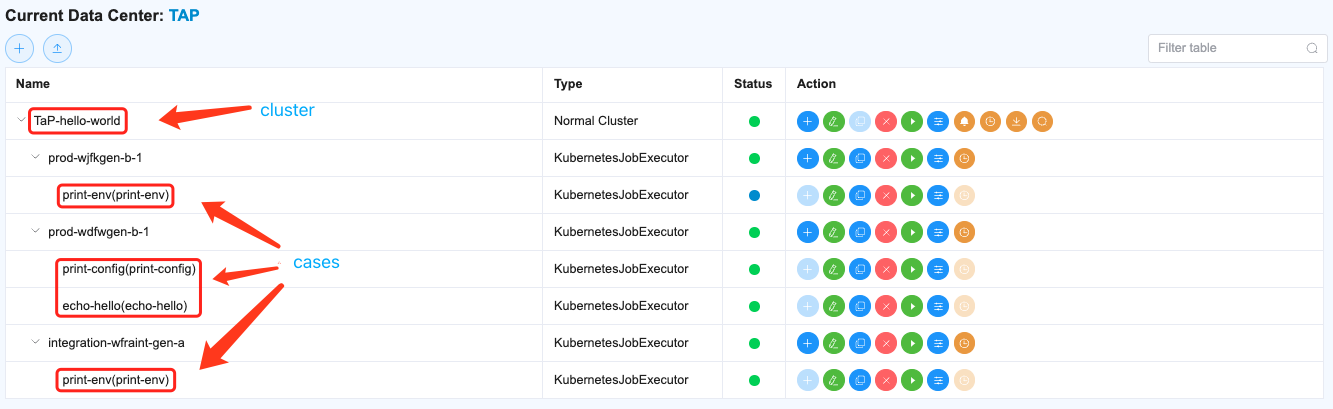
- One TAP case corresponds to one MCT check.
- All cases will be registered under cluster
TAP-${app group}, which in this case isTAP-hello-world, and zone${env}-${cluster}, which in this case is the root elements namedprod-wdfwgen-b-1. - Check parameters are based on values in the rendered tap-settings.yaml.
"cluster" and "zone" are concept form MCT structure, used for categorize check / case.
Parameters of the case echo-hello 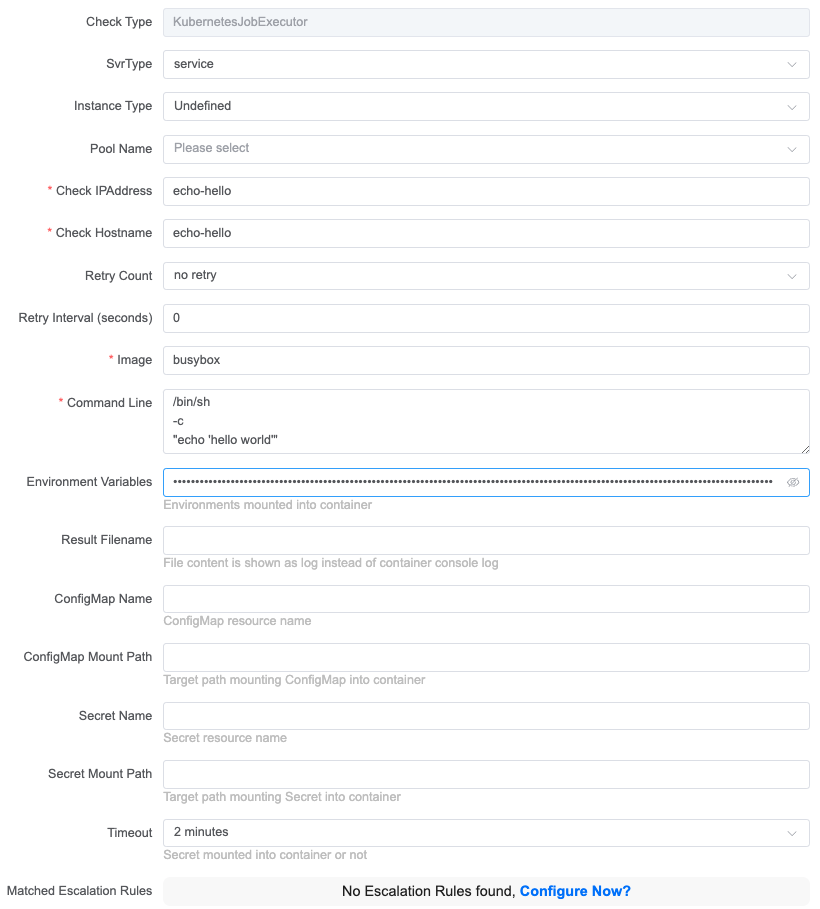
Kubernetes Resource Provisioning 
You can set any configuration files needed by TAP cases, in this example, those files named as config.yaml are the configuration files, which also support bottom-up value merging.
Normal Configuration 
You can set yaml key-value pair directly, here is an example of hello-world/integration/config.yaml
environment: integration
Confidential Information 
For security concern, all confidential information should placed at Vault.
💡 check Onboard to MCT for Vault access
All secrets are under namespace meetpaas/app-secrets/monitoring-alerting-service/int/tap. Here is an hello world example of the namespace: 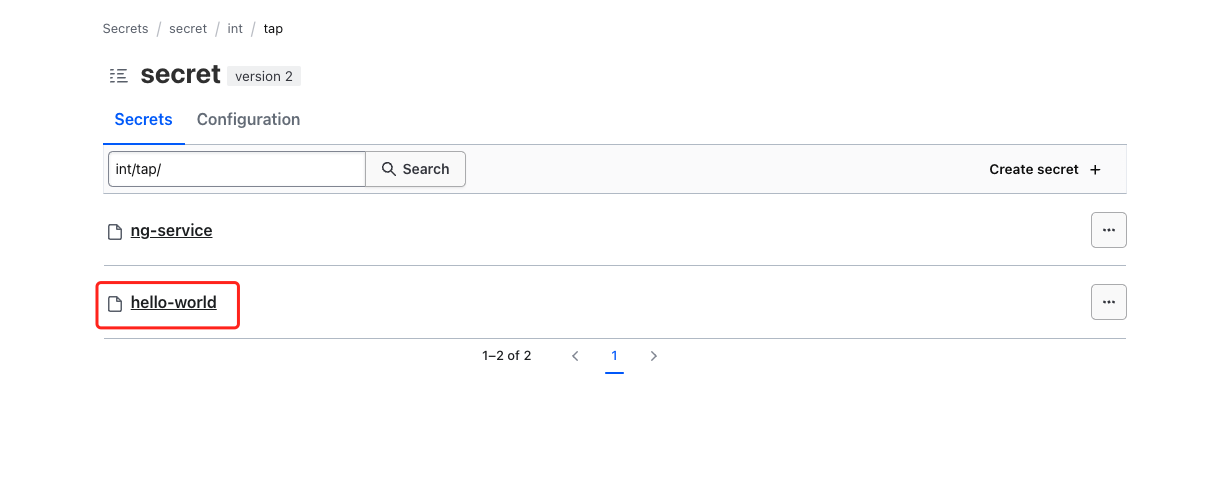
Assuming you already have the access, you can create your own namespace (app group) and set any secret information. Recommend to align the structure as in the tap-settings repo. Here is an hello world example for the value: 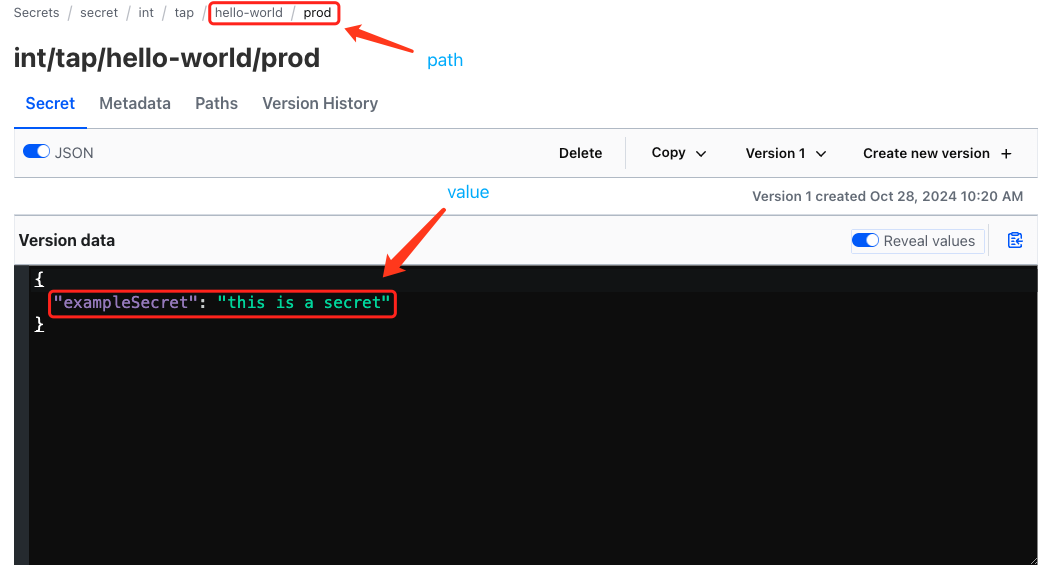
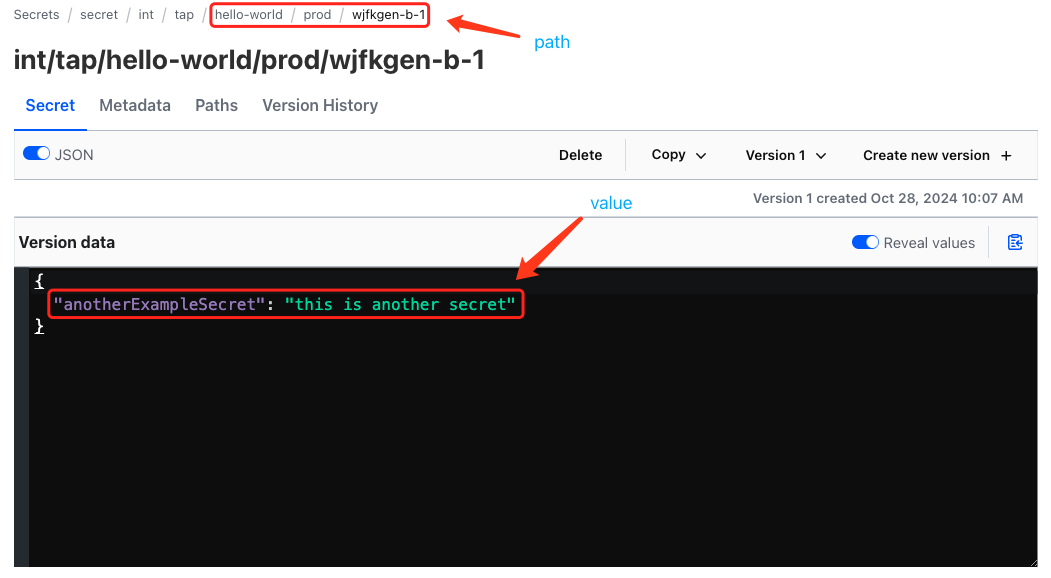
After Vault is ready, you can refer them in the configuration file with full path by Helm Template Language, below is an example:
-
environment: prod
log:
  size: 10MB
secret: "{{ .Data.data.prod.exampleSecret }}"
-
environment: prod
secret: "{{ .Data.data.prod.wdfwgen-b-1.exampleSecret }}"
What you will get 
Merging of the PR will trigger an Argo Pipeline, which will deploy those resources into Webex Kubed clusters. Here is an installed resource example of case echo-hello: 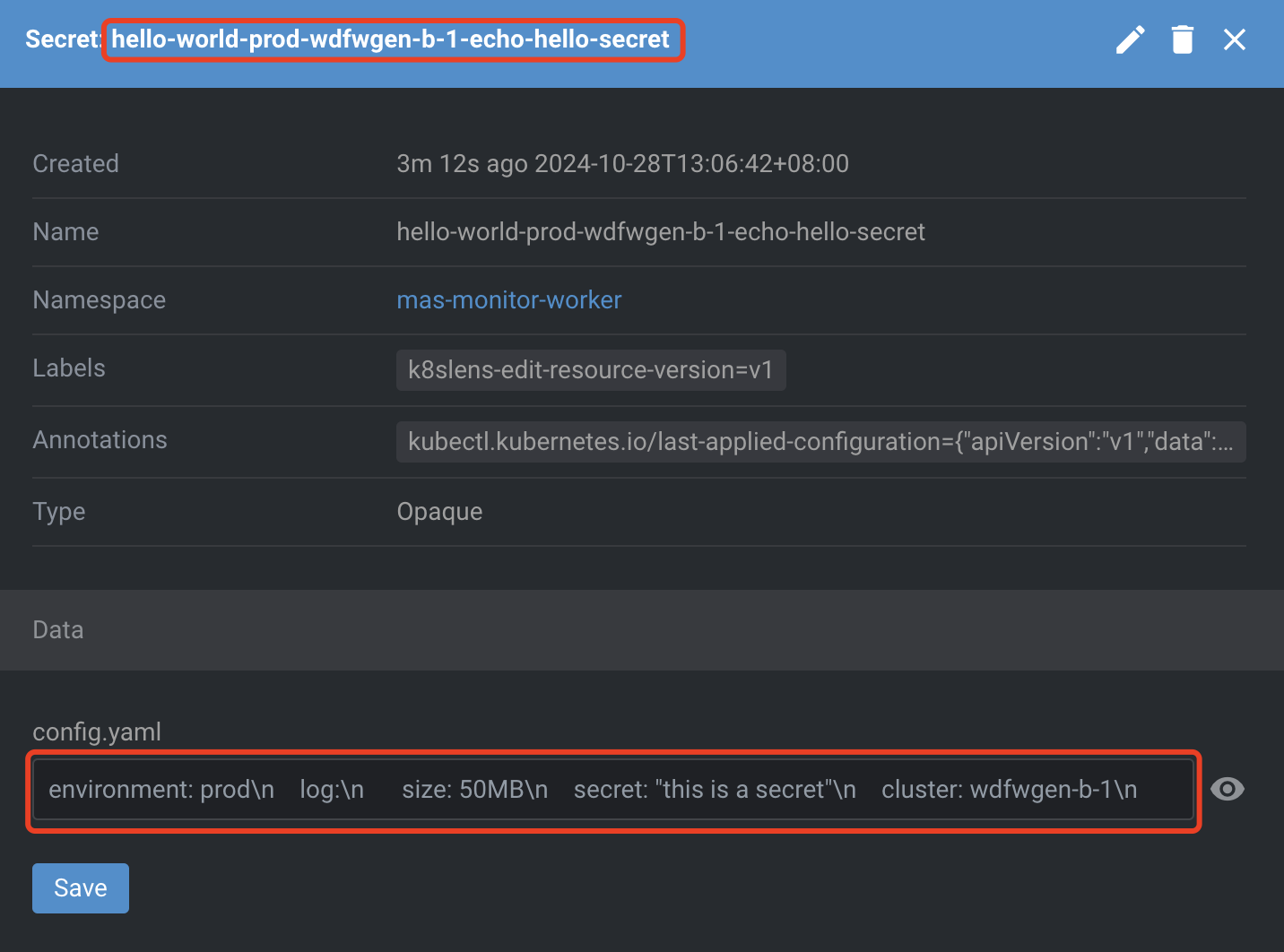 The full resource content:
environment: prod
log:
  size: 50MB
secret: "this is a secret"
cluster: wdfwgen-b-1
anotherSecret: "this is another secret"
caseName: echo-hello
secretandanotherSecretare rendered based on values in the Vault.log.sizeis override by bottom value.
How to use k8s resource 
- Define a proper
volumeMountPathin tap-settings.yaml, so that resource will be mounted into target path. - Use the configuration file in your TAP job.
Monitoring 
Monitoring will start automatically if timerInterval is provided in tap-settings.yaml. Results will be pushed back to the MCT portal and to OpenSearch and Grafana.
See below for the overall result: 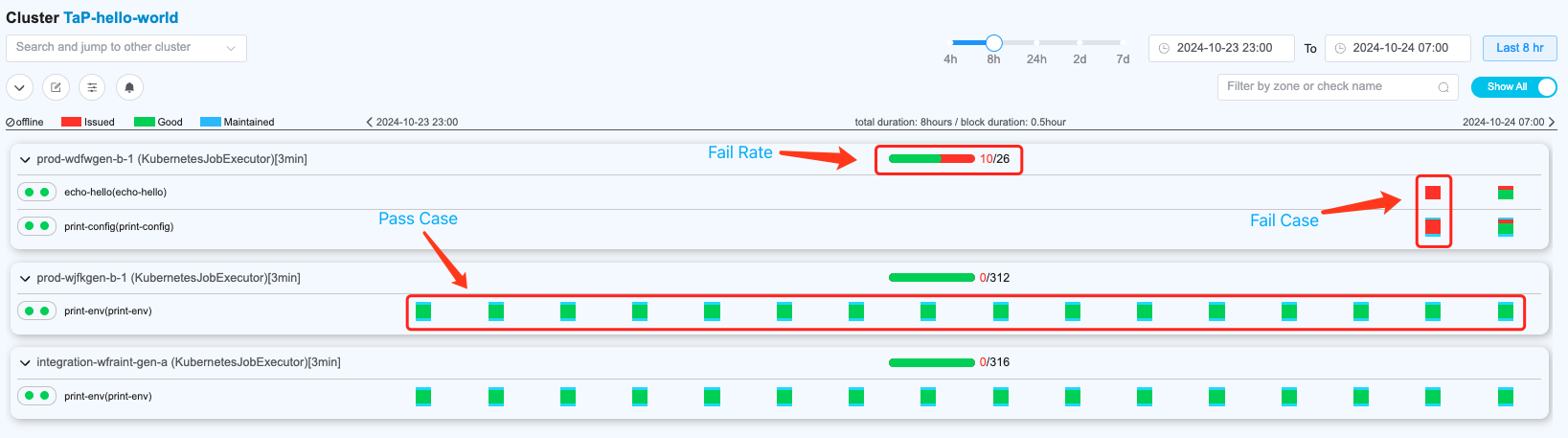
Result of the case echo-hello 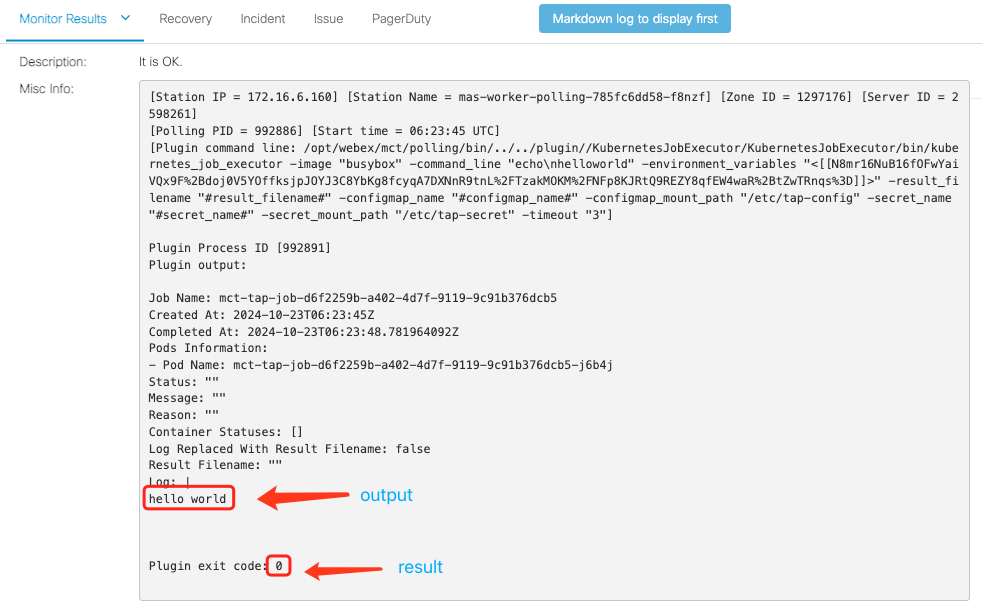
Troubleshooting 
When there is an alert, MCT will send notifications to service owners based on the Alert Rule.
MCT Result 
The Monitoring section shows the monitoring result. If there are any failures, you can find the trace here.
LMA Result 
If the log is extensive or you are more familiar with LMA, TAP logs will be available there.
You can find logs for the whole session by pod name. In this case, it is mct-tap-job-e7e91ee9-968e-4b68-9dec-54af5e4af6b2-mmcgb. Search OpenSearch by k8s.pod_name.keyword: mct-tap-job-e7e91ee9-968e-4b68-9dec-54af5e4af6b2-mmcgb for the complete log: 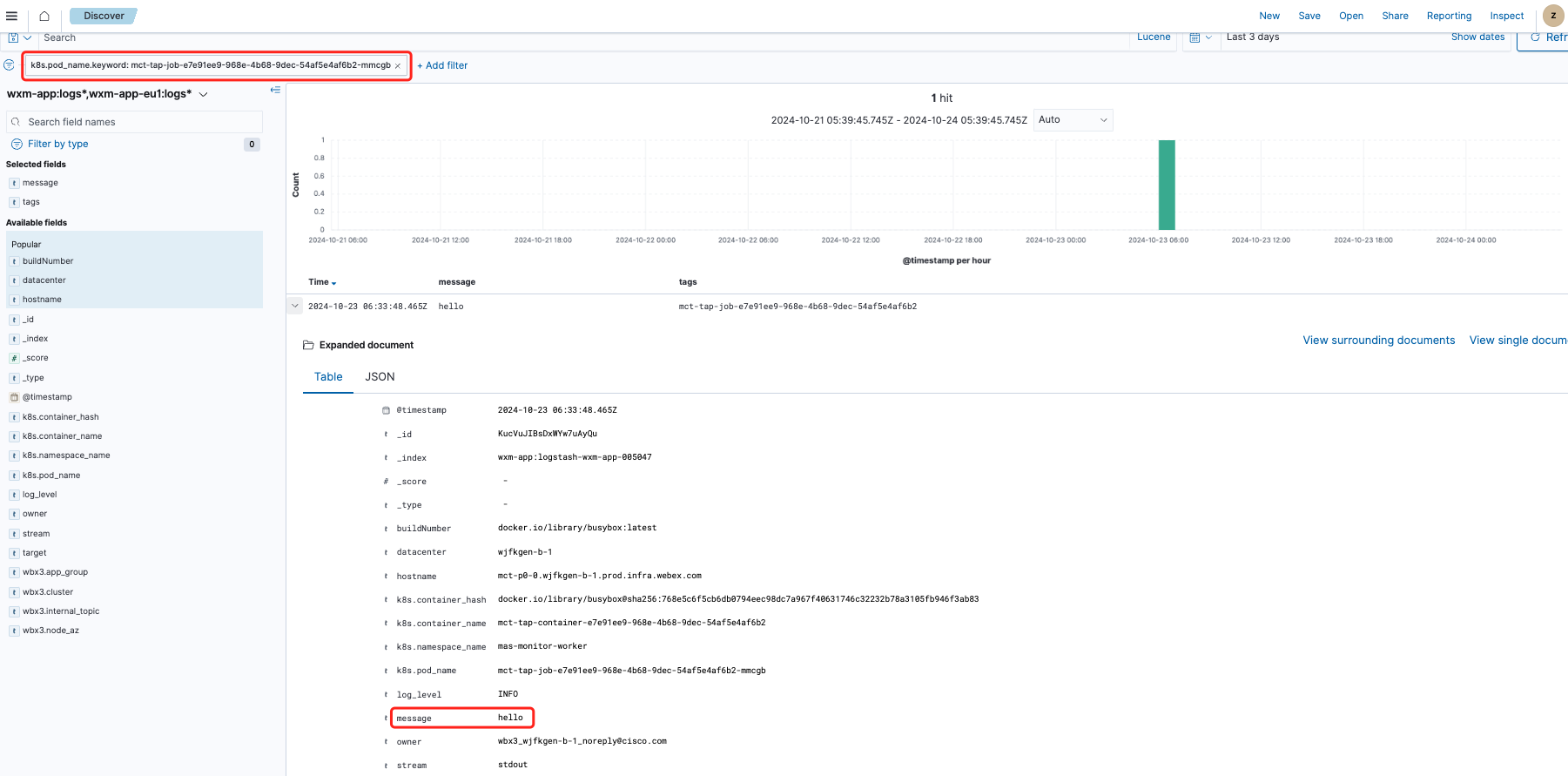
You can also find test result metrics on Grafana, below is a snapshot: 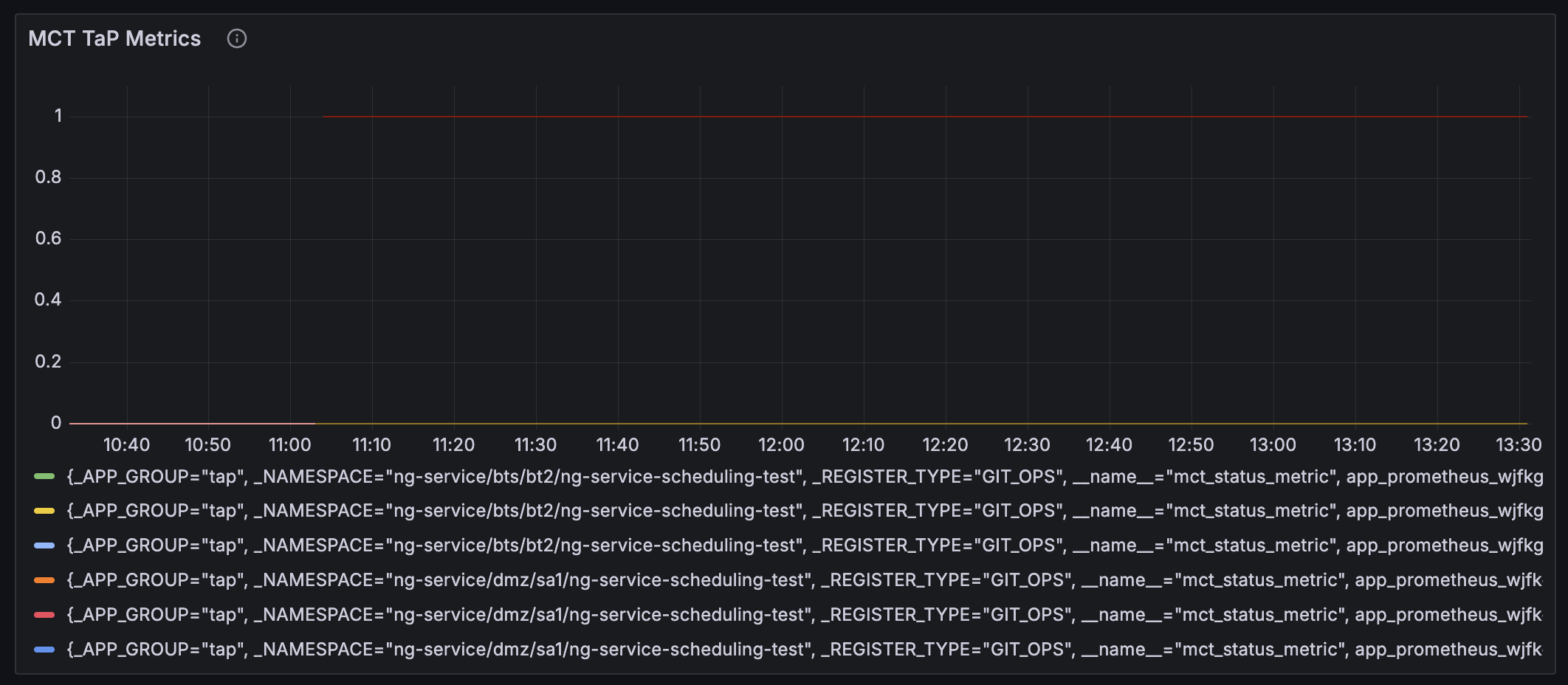
Summary 
This wiki go through the whole onboarding process of Docker-based TAP monitoring through a "Hello World" case. For further assistance, please contact the MAS Monitoring Team:
- Mail
- Teams Space