Steps to Build a Windows Environment on AWS for appium runner
This doc is about how to build aws windows for appium runner, it can be used to run E2E testing.
We need to login Windows to do below actions by Administrator user.
Build one Windows based on one Amazon Machine Image (AMI) 
- EC2 -> Instances -> Launch an instance -> Input one Windows Name
- Choose Microsoft Windows Server 2022 Base AMI and one Instance Type
- Network settings Info:
- Choose one VPC which can generate one private IP, the network can communicate with the intranet.
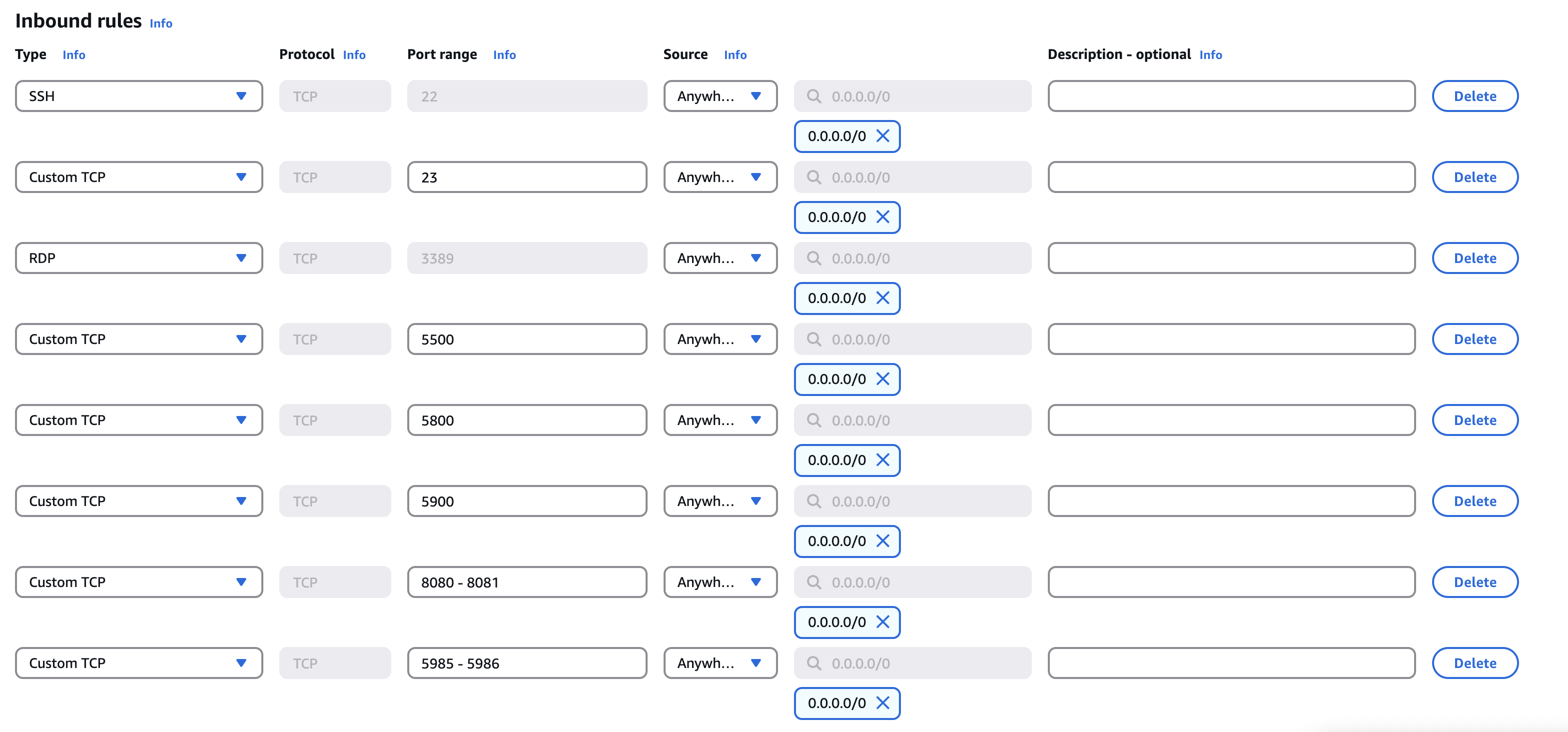
- Create one security group. Please refer to below Inbound and Outbound rules. And add other ports if you need. Then choose this security group.

- Configure storage Info, let's use set 80 GiB and use gp3
- Launch instance
OS Level Init Setting 
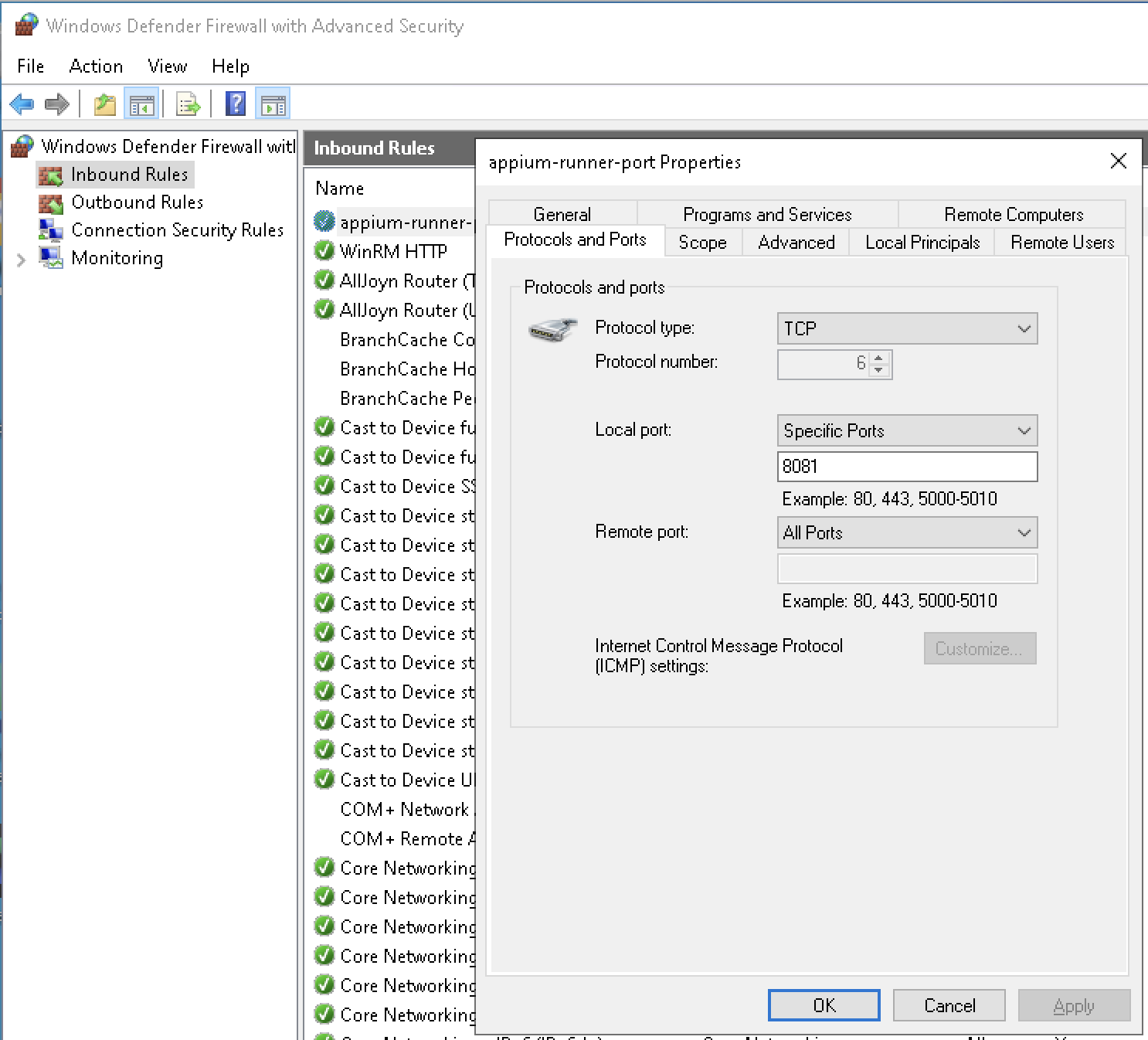
- Control Panel -> System and Security -> Windows Defender Firewall -> Advance settings -> Inbound Rules -> Add one Rule (8081). And others port you want to open.
- Download chrome and install it.
-
RDP session timeout setting:
gpedit.msc -> Local Computer Policy -> Computer Configuration -> Administrative Templates -> Windows Components -> Remote Desktop Services -> Remote Desktop Session Host -> Session Time Limits -> "Set time limit for disconnected sessions" select enable and set "End a disconnected session" = never "Set time limit for active but idle Remote Desktop Services session" select enable and set "Idel session limit" = never "Set time limit for active Remote Desktop Services sessions" select enable and set "Active session limit" = never - Win os auto update disable:
services.msc -> Windows Update & Windows Push Notifications System Service set to disabled
-
Chrome auto update disable:
- services.msc -> Google Updater Internal Service & Google Updater Service set to disabled
- Update all folder names into xxx.bk which are in C:\Program Files (x86)\Google
-
Server Manager auto start disable:
- In Server Manager, click on "Manage" in the top-right corner
- Select "Server Manager Properties"
- Check the box for "Do not start Server Manager automatically at logon"
- Click "OK" to apply the changes
-
Windows developer mode enable:
Setting -> Update & Security -> For developers and enable Developer Mode
-
Add some configurations in host file:
- Find the hosts file in
C:\Windows\System32\drivers\etc - Add the following configurations to the hosts file, and any others if necessary.
10.240.0.44   csgcmc.webex.com
10.254.249.11 rmc.webex.com
10.254.164.160    ftp.mas.webex.com
10.254.164.146    nginx.mas.webex.com
- Find the hosts file in
-
Change password for Administrator
Control Panel -> User Accounts -> User Accounts -> Manager another account -> Change an Account -> Change the password as we required
Install Appium 
- Download [NodeJS](https://nodejs.org) and install it.
- Install appium:
npm install -g appium - Install Windows driver:
appium driver install --source=npm appium-windows-driver - Install WinAppDriver v1.2.1, (v1.2.99 has bug, make sure not use it).
- Install appium-chromium-driver:
appium driver install chromium -
Install chromedriver:
- Open Chrome Browser -> Click Help -> About Google Chrome -> Get Chrome version.
- Find download address from ChromeDriver version with your browser version, it will be a file like chromedriver-win64.zip, unzip it to C:\chromedriver-win64.
Install ffmpeg for recording 
- Download ffmpeg-release-essentials.zip
- Unzip it to somewhere, like
C:\Program Files\ffmpeg\bin. - Settings -> System -> About -> Advanced System settings -> Config the System variables
Path=C:\Program Files\ffmpeg\bin
Install tesseract 
- Download the tesseract
- After install, Settings -> System -> About -> Advanced System settings -> Config the System variables
Path=C:\Program Files\Tesseract-OCR(your real install location) - Test by tesseract -v
Download and execute a powershell script 
- Download all files from http://10.250.237.28:8089/appium/windows
- Copy all files to
C:\\appiumexpect for api.properties file. - Copy the api.properties file to
C:\appium\Administrator\conf. Modify some values if needed. - Update the values for appium_cmc_refresh.ps1, specifically the packageVersion and packageBuild.
- Execute the following commands in PowerShell as Administrator.
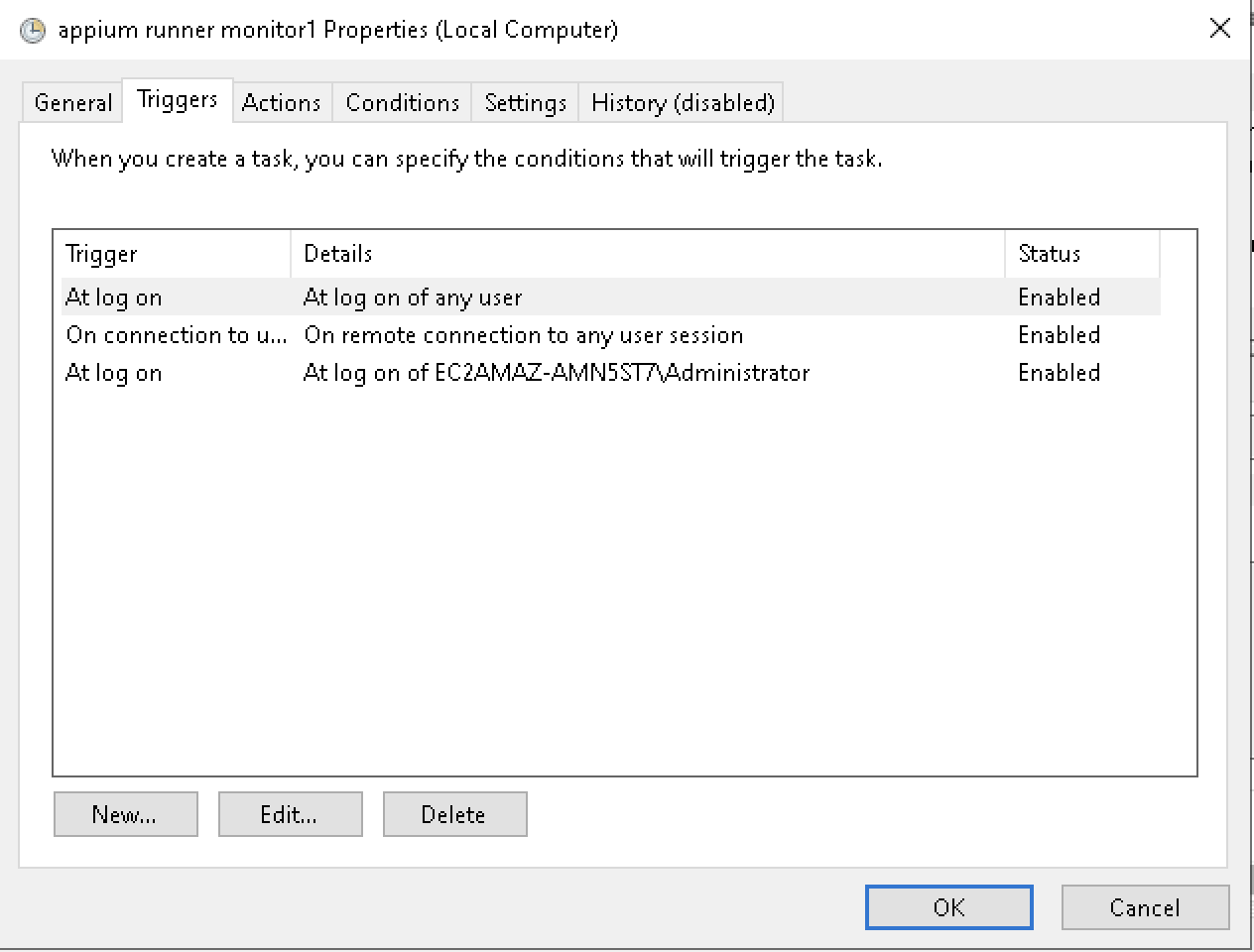
cd C:\\appium ./appium_cmc_refresh.ps1 - Open Task Scheduler and right-click Properties for appium runner monitor1 job. And add or change below settings as following:
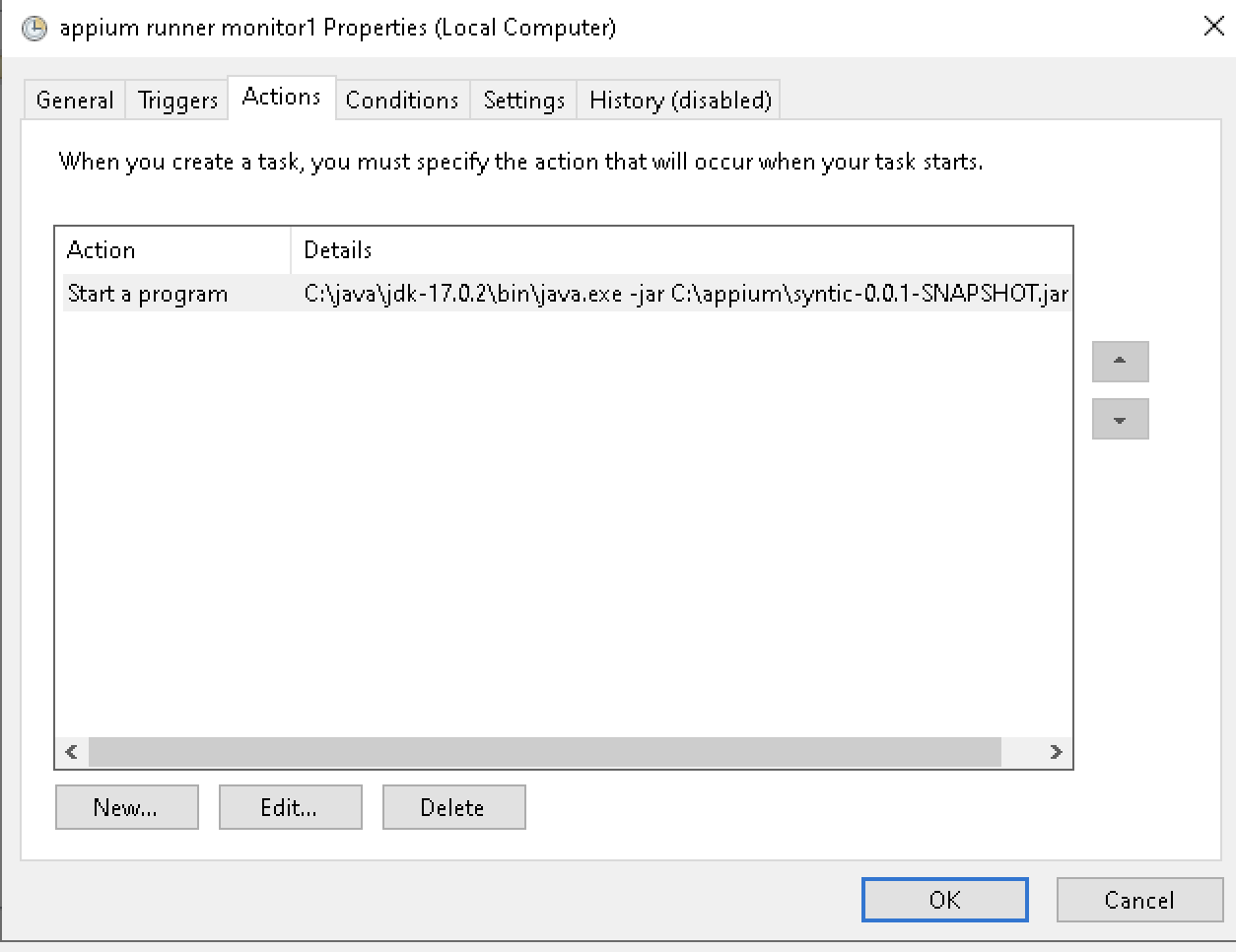
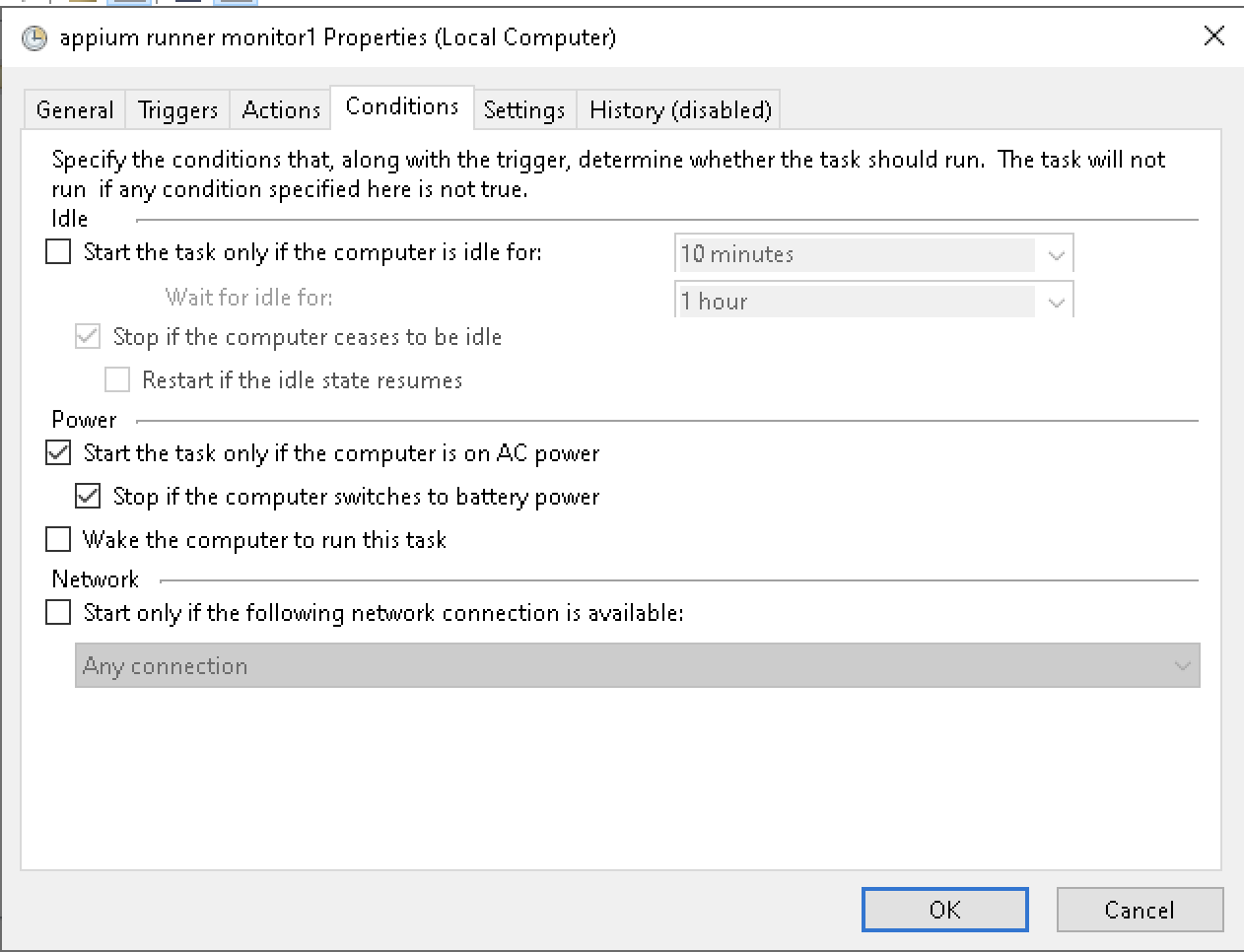
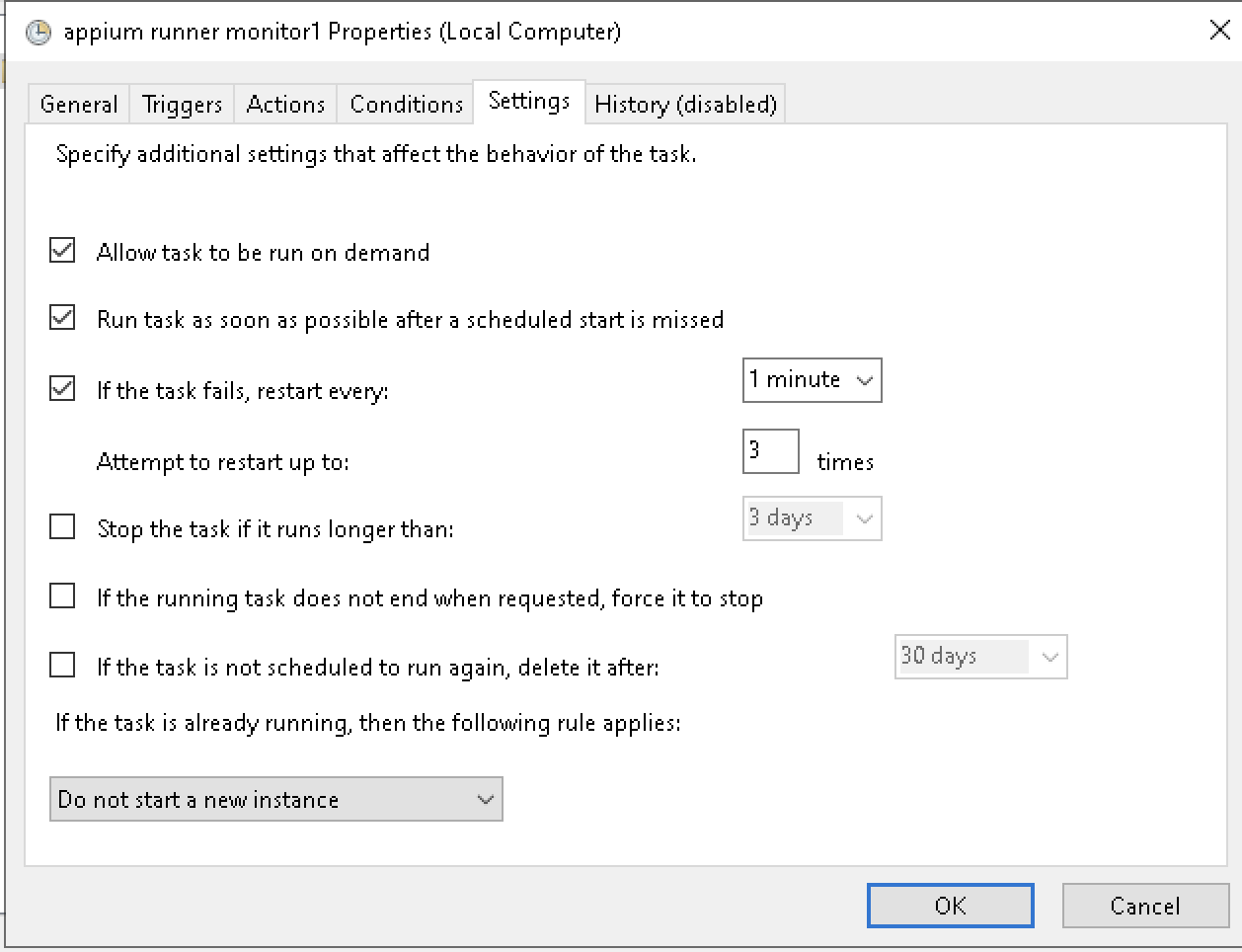
- Right-click appium runner monitor1 job and choose Run.
Verify the environment if it works fine 
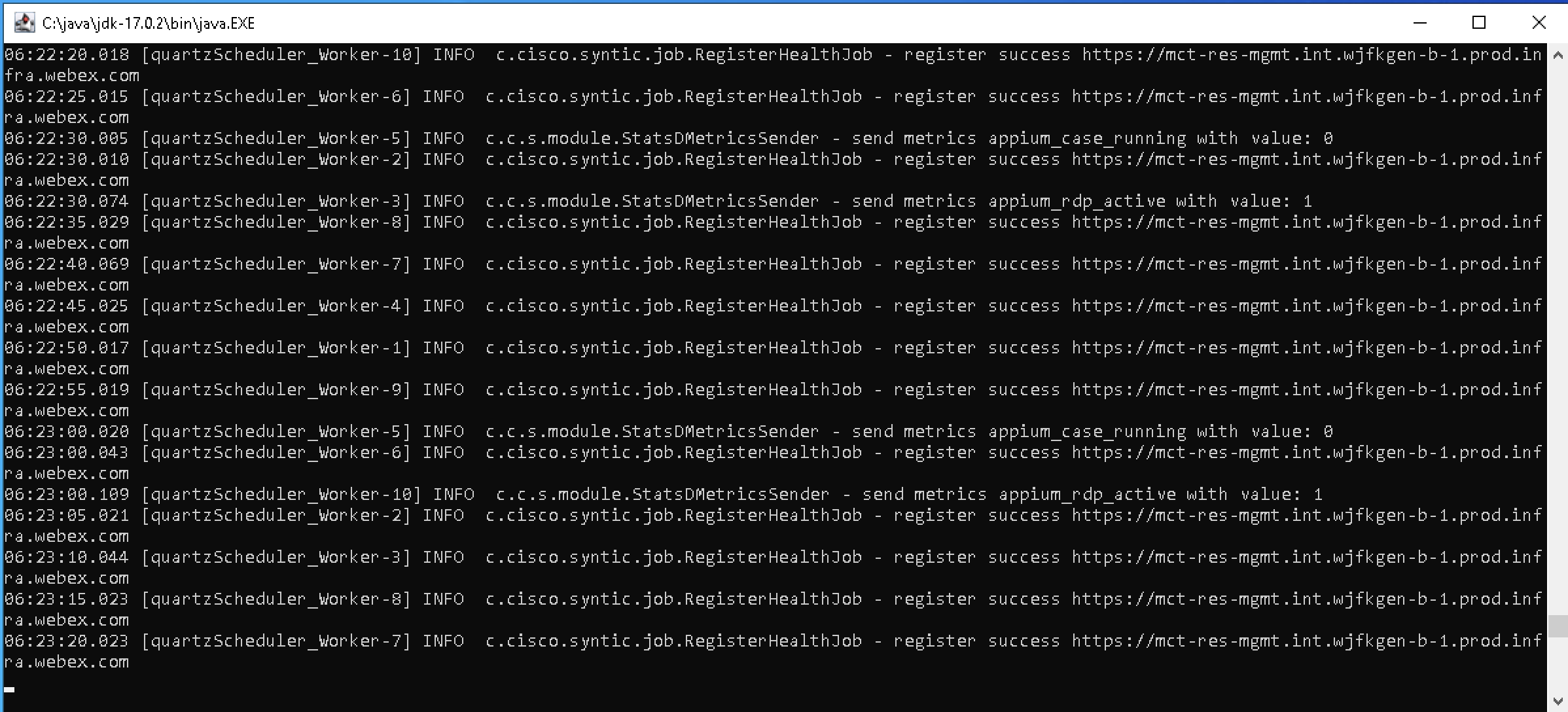
- Check if having any issues for console log in the command prompt.