Windows agent CICD solution
Background 
MCT CICD flow is described on cicd-process, and the flow can not cover Windows server deploy since CMC modern deploy do not support Windows.
Requirement Analyse 
CMC is now the only option for us to do deploy, so Windows deploy has to use the traditional way: put configuration and package info on CMC, luckily there are several CMC APIs, so that deploy automation is also possible.
Option 1: Docker on Windows 
To install agent docker on Windows is the best way on management perspective, since we only need to maintain one kind of agent package. But the solution was rejected due to below three reasons:
-
Auto install docker on Windows Server 2016 is impossible (manually install is required).
-
Need to enable WSL (Windows Subsystem Linux) to run linux based docker image, which may have some impact on server's performance.
-
Docker image is not well supported on traditional deploy.
Option 2: Configure Agent ZIP on CMC 
Package management is naturally supported by CMC, when package is configured on Package Installation Management, CMC will automatically deploy those packages on Package Installation stage.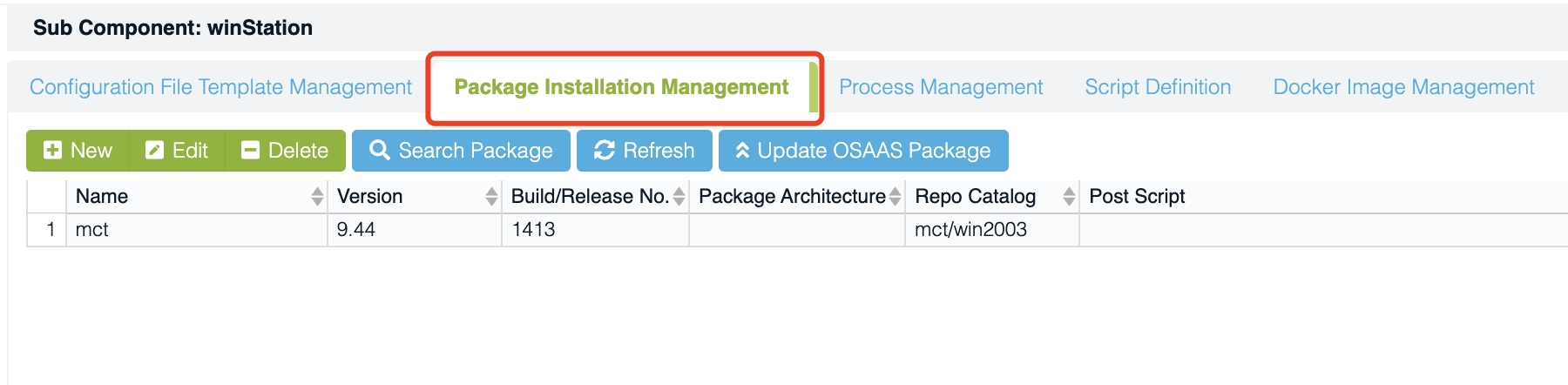
It works perfectly for RPM management on Linux, but when it comes to Windows, it did not work as expected (already read through CMC source code), and now CMC maintainer do not have resource for new requirements, do, it is also a dead end.
Option 3: Do it all by CMC script 
CMC support pre / post script, which allows users to customize certain scripts (bash on Linux and powershell on Windows) before / after configuration update or package installation.
We can handle the full download and install process in script, but the question is, how do we know which agent package to install? The package version info needs to be configured somewhere on CMC, what's more, there should be an API to update it from outside for automation concern, unfortunately, there is no way to do this.
So, how to achieve Windows deploy automation? The key here is to set a convention that, for each CICD flow, create a new CMC version / build, and keep the package version / build number same as CMC version / build (we can get current version and build info from CMC).
Implementation Detail 
Package Build Phase 
Add new Jenkins build stage package and upload agent zip file after stage maven build package, pack agent jar file to a zip file with naming mct-cloud-agent-${version}-${build}-noarch.zip, and upload it to RMC, example code as below:
stage("package and upload agent zip file") {
    when {
        allOf {
            expression { return env.svrtypesToBuild.split(",").contains('winmwt') }
        }
    }
    steps {
        script {
            dir("mct") {
                // pack agent jar to a zip, and upload to rmc, specially for windows agent.
                def sourceFile = "./mct-cloud-agent/target/mct-cloud-agent-${version}-${build}.jar"
                def targetFile = "./mct-cloud-agent/target/mct-cloud-agent.jar"
                // remove suffix
                writeFile(file: targetFile, encoding: "UTF-8", text: readFile(file: sourceFile, encoding: "UTF-8"))

                def zipFile = "./mct-cloud-agent/target/mct-cloud-agent-${version}-${build}-noarch.zip"
                zip(zipFile: zipFile, dir: './mct-cloud-agent/target/', glob: 'mct-cloud-agent.jar')

                def res = sh(returnStdout: true, script: "curl -H 'authorization: ${accessToken}' -H 'Content-Type: application/json' -X POST -d '[{\"fileName\":\"'${zipFile}'\", \"component\":\"${env.component}\", \"osType\":\"noarch\", \"status\":\"QA\", \"lockStatus\":\"Yes\"}]' 'https://rmc.webex.com/rest/preprocess'")

                def sha256 = sh(script: "sha256sum ${zipFile}", returnStdout: true).trim().split()[0]
                writeFile(file: 'a.sha', text: sha256)
                res = sh(returnStdout: true, script: "curl -H 'authorization: ${accessToken}' -F 'file=@${zipFile}' -F 'sha256=<a.sha' 'https://rmc.webex.com/api/package/mct/noarch'")
            }
        }
    }
}
Package Promote Phase 
Since the package is not managed by CMC, so when promoting the package, we have to promote the package separately by calling RMC promote API, example code as below:
if (svrTypes.contains('winmwt')) {
    // specially handle for windows agent deploy
    def res = sh(returnStdout: true, script: "curl --location --request POST 'https://rmc.webex.com/change-status?fileName=mct-cloud-agent-${version}-${build}-noarch.zip&newStatus=BTS&component=mct' --header 'Authorization: ${accessToken}' ")
}
Call Deploy API Phase 
Call different CMC api to refresh Windows servers. Example deploy data for modern deploy:
{
    "serviceName": "mct",
    "version": "17.1.0-10001",
    "taskType": "ansible_host_service_refresh",
    "user": "zhochi",
    "additional": {},
    "poolList": [
        {
            "name": "mcthfpg",
            "boxTypeList": [
                "mulsvr"
            ]
        }
    ]
}
Example deploy data for Windows deploy:
{
    "serviceName": "mct",
    "version": "17.1.0-10001",
    "taskType": "service_refresh",
    "user": "zhochi",
    "additional": {
        "refresh_option": {
            "configuration": "true",
            "service": "true",
            "package": "true"
        }
    },
    "poolList": [
        {
            "name": "mcthfpg",
            "boxTypeList": [
                "winmwt"
            ]
        }
    ]
}
Package Deploy Phase 
All deploy actions happens in CMC Installation Post Script (CMC -> My Components -> winStation -> Script Definition -> Installation -> Post Script), main logic is:
-
Download agent zip package from RMC, the package should matches convention
mct-cloud-agent-${version}-${build}-noarch.zip, which is exactly the package built on above Package Build Phase. -
Unzip and replace agent jar file on the server.
-
Set agent active profile (current pool name) as environment variable.
-
Install agent service if needed (for first agent installation).
Example code shows as below:
echo "start to upgrade cloud agent"
[System.Net.ServicePointManager]::SecurityProtocol = [System.Net.SecurityProtocolType]::Tls12
$agentHome = "C:\Cisco\mct-cloud-agent"
$url = "https://{{global.rmcInfo.hostName}}/{{system.poolType}}/mct/noarch/mct-cloud-agent-{{ system.serviceVersion }}-{{ system.buildNo }}-noarch.zip"
$zipFile = "$agentHome\mct-cloud-agent-{{ system.serviceVersion }}-{{ system.buildNo }}.zip"
$jarPath = "$agentHome\bin"
$serviceName = "mct-cloud-agent"
$profile = "{{ system.poolName }}"

$error.clear()
New-Item -ItemType Directory -Path $agentHome -Force
if ($error) {
    echo "Failed to create agent home: $error"
    $error.clear()
    exit 1
}

echo "start to download agent package from $url"
Invoke-WebRequest -Uri $url -OutFile $zipFile
if ($error) {
    echo "Failed to download agent: $error"
    $error.clear()
    exit 1
}
echo "package downloaded to $zipFile"

echo "start to extract agent package"
Expand-Archive $zipFile -DestinationPath $jarPath -Force
if ($error) {
    echo "Failed to extract agent package: $error"
    $error.clear()
    exit 1
}
echo "package extracted to $jarPath"

echo "start to remove agent package"
Remove-Item $zipFile -Force
if ($error) {
    echo "Failed to remove agent package: $error"
    $error.clear()
    exit 1
}
echo "agent package successfully been removed"

echo "start to set agent active profile"
[System.Environment]::SetEnvironmentVariable('SPRING_PROFILES_ACTIVE ', $profile, 'Machine')
if ($error) {
    echo "Failed to set agent active profile: $error"
    $error.clear()
    exit 1
}
echo "profile successfully been set to $profile"

# check if agent service is created
$agentService = Get-Service -Name $serviceName -ErrorAction SilentlyContinue
if ($agentService.Length -le 0) {
    # $error.clear()
    # $jarFile = (Get-ChildItem -Path $jarPath -Filter "*.jar").FullName
    $jarFile = "$jarPath\mct-cloud-agent.jar"
    # New-Service -Name $serviceName -BinaryPathName "java -jar $jarFile" -DisplayName "Cloud Agent Service" -Description "Service for MCT Cloud Agent"

    echo "agent service is not installed, will install it by nssm first"
    $url = "https://{{global.rmcInfo.hostName}}/prod/mct/win2003/nssm.exe"
    $nssmFile = "$agentHome\tool\nssm.exe"
    $error.clear()
    New-Item -ItemType Directory -Path "$agentHome\tool\" -Force
    Invoke-WebRequest -Uri $url -OutFile $nssmFile
    if ($error) {
        echo "Failed to download nssm.exe from rmc: $error"
        $error.clear()
        exit 1
    }
    echo "nssm.exe successfully downloaded to $nssmFile"

    echo "Start to create agent service by nssm"
    & $nssmFile install $serviceName "java" -jar "$jarFile"
    if ($error) {
        echo "Failed to create agent service: $error"
        $error.clear()
        exit 1
    }
    echo "Agent service successfully created"
}
echo "cloud agent package has been successfully upgraded"